Google Tag Manager
Google Tag Manager (GTM) is a free tool that lets you manage and deploy tracking tags on your help center without editing code. With GTM, you can add Google Analytics, consent management tools, conversion tracking, and other scripts from one central dashboard.
Why use Google Tag Manager?
Unlike adding Google Analytics directly, GTM gives you more flexibility:
- Manage multiple tools: Add Analytics, Hotjar, Facebook Pixel, and other tracking scripts through one integration
- GDPR compliance: Integrate consent management platforms like Cookiebot or OneTrust
- No code changes: Update tracking logic anytime from Google's interface without touching your help center
- Advanced tracking: Set up custom events, triggers, and variables without developer help
Prerequisites
Before you start, you'll need:
- A Google Tag Manager account (create one at tagmanager.google.com)
- Your GTM Container ID (format:
GTM-XXXXXX)
How to add Google Tag Manager to your help center
- Log in to your Notiondesk dashboard
- Navigate to Settings → Integrations
- Find Google Tag Manager in the list
- Paste your GTM Container ID (e.g.,
GTM-XXXXXX)
- Click Save changes
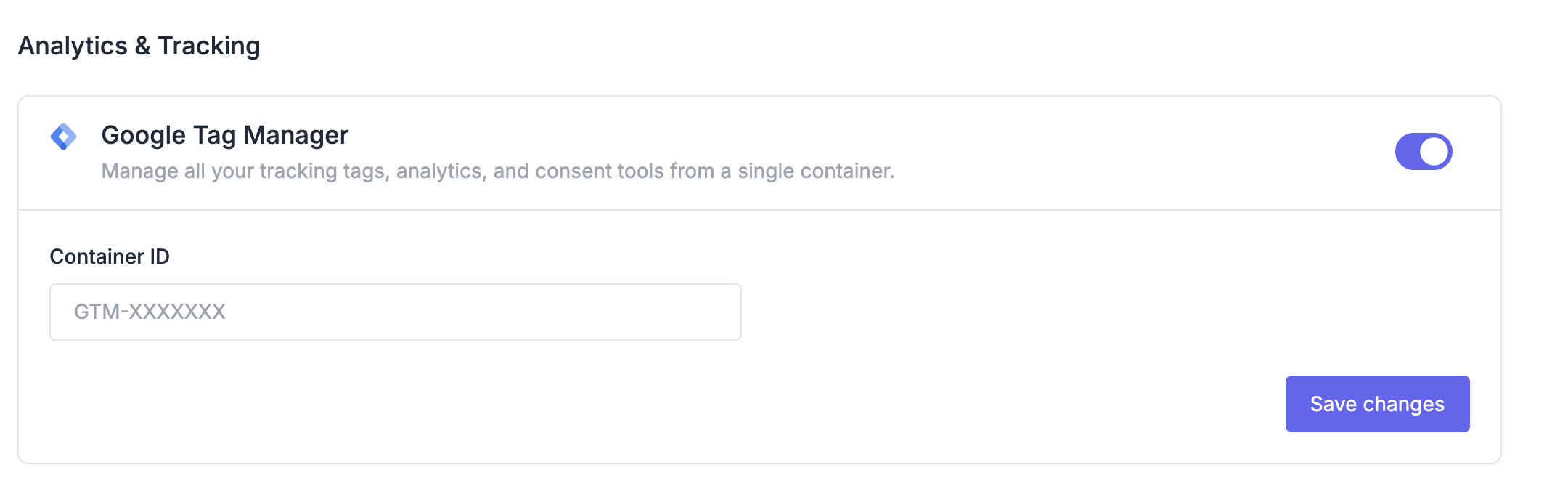
Your GTM container is now active on your help center. All tags configured in your GTM workspace will automatically load.
Finding your GTM Container ID
- Log in to Google Tag Manager
- Select your account and container
- Your Container ID appears in the top navigation (format:
GTM-XXXXXX)
Verifying the integration
To confirm GTM is working:
- Install the Google Tag Assistant browser extension
- Visit your help center
- Click the Tag Assistant icon
- You should see your GTM container listed as "Working"
Alternatively, open your browser's developer console and type google_tag_manager - you should see an object with your container data.
What to do next
Once GTM is connected, you can add tags from your Google Tag Manager dashboard:
- Google Analytics 4: Track page views, searches, and visitor behavior
- Consent Management: Integrate Cookiebot, OneTrust, or similar tools for GDPR compliance
- Conversion Tracking: Add Facebook Pixel, LinkedIn Insight Tag, or Google Ads tracking
- Heatmaps & Recordings: Connect Hotjar, Microsoft Clarity, or similar tools
All tags are managed from your GTM workspace.
Troubleshooting
GTM not loading on my help center
- Verify your Container ID format is correct (
GTM-XXXXXX)
- Check that your GTM container is published (not in draft mode)
- Clear your browser cache and test in an incognito window
Tags not firing
- Ensure tags are published in your GTM workspace, not just saved as drafts
- Check tag triggers are configured correctly in GTM
- Use GTM's Preview mode to debug tag firing