Once MCP Search is enabled, you can connect your Notiondesk help center to Claude, ChatGPT, Cursor, and other AI assistants using a single connector URL.
If you haven't enabled it yet, see Enable MCP Search in your help center settings first.
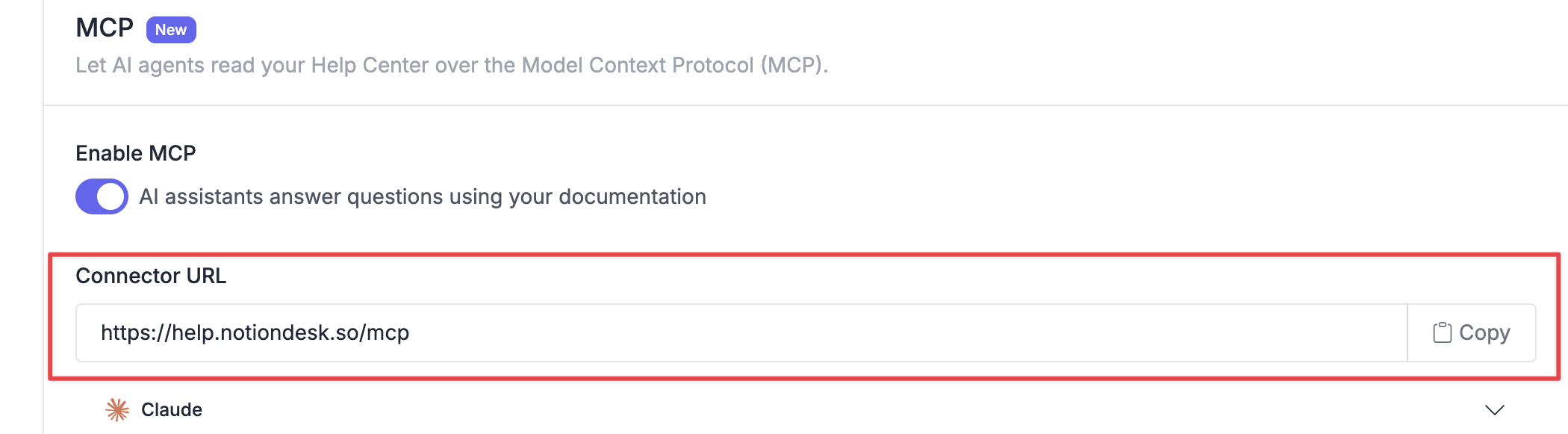
Step 1: Copy your connector URL
- Go to Settings → General.
- Find the MCP card.
- Click Copy next to your connector URL.
Step 2: Add it to your AI assistant
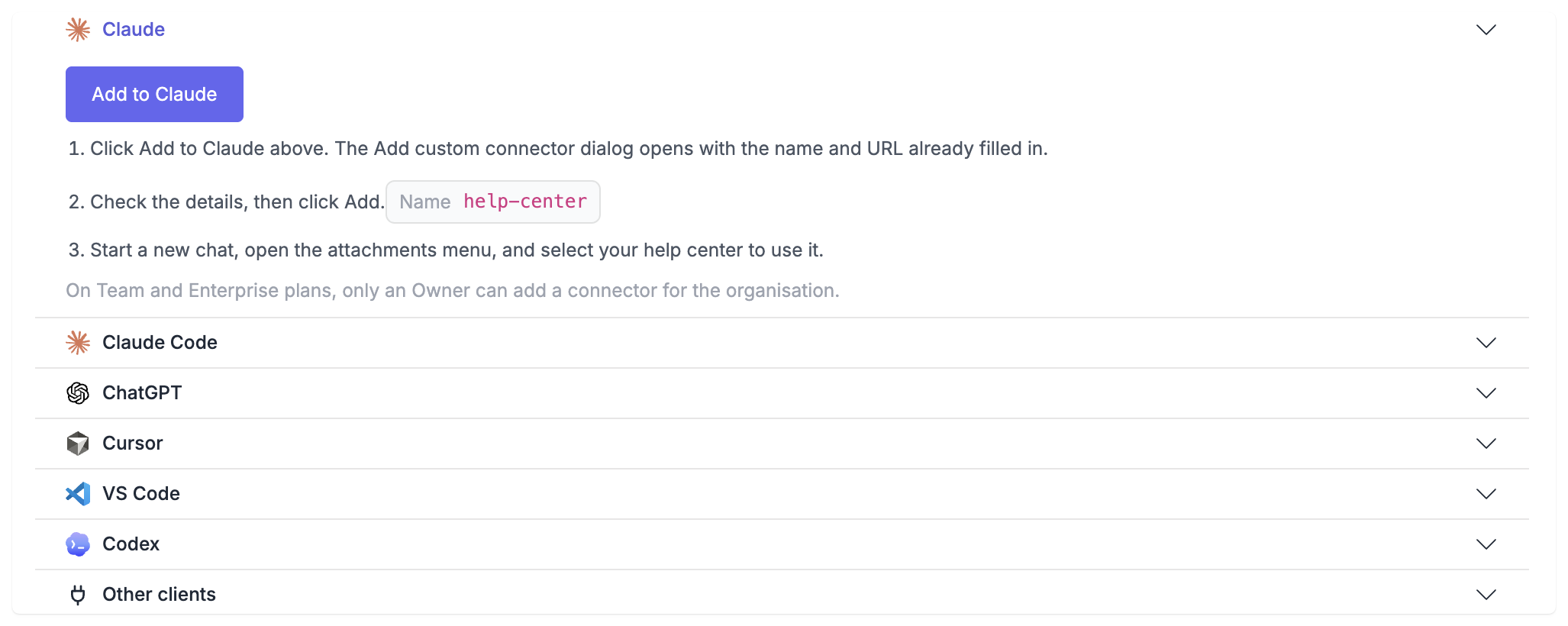
In the same MCP card, you'll find setup instructions for each supported assistant. Open the panel for the assistant you use and follow the provided install command or configuration.
Notiondesk supports Claude, Claude Code, ChatGPT, Cursor, VS Code, and Codex, with an additional option for other MCP clients.
A few things to know:
- Claude Team or Enterprise: Only an Owner can add a custom connector for the organization. If you don't see the option to add one, contact your Claude workspace Owner.
- ChatGPT: MCP connectors require Developer mode, which you can enable from your ChatGPT settings.
- Cursor and VS Code: You can use the one-click install option from the MCP card instead of configuring the connector manually.
Verify your connection
Once connected, ask your AI assistant a question that you know is answered in your help center. It should search your documentation and use the relevant published content in its answer.
If your help center won't connect
Check the following:
- Make sure MCP Search is enabled and your changes are saved under Settings → General.
- If you entered the URL manually, make sure it starts with
https://, nothttp://.
- Make sure your help center is public. MCP Search only works with public help centers.
- If you use Cloudflare on your own custom domain, check that your firewall or WAF isn't blocking requests from AI assistants.
If you're still having trouble, contact our support team.
What can the connected assistant access?
MCP Search is read-only. A connected assistant can search and read your public, published help center content, but it cannot create, edit, publish, or delete anything.
For more details, see Connect your help center to AI agents with MCP Search.
Common questions
Where do I find my MCP connector URL?
Go to Settings → General, find the MCP card, and use the Copy button to copy your connector URL.
Do I need an account or API key to connect?
No. MCP Search connects anonymously to public help centers, so no login or API key is required.
Can I connect more than one AI assistant?
Yes. You can use the same connector URL with multiple supported AI assistants.
Will connecting an AI assistant change my help center?
No. MCP Search is a separate, read-only connection and doesn't change your help center or the pages your visitors see.