When a reader who isn't signed in opens your help center, Notiondesk sends them to a page of your app, your SSO URL. That page signs them in with the Messenger or with a redirect from your server, and they land back on the page they asked for, without a second login.

Before you start
- Your help center uses the Guest accounts access mode.
- You have an App Secret. Create one in Settings > Access, in the App Secret card. It's shown only once, so store it on your server, for example in
NOTIONDESK_APP_SECRET.
- Your server can sign a user token. Identify logged-in users in Notiondesk Messenger explains the token. In Settings > Widget, the Sync user information card gives signing code in Node.js, Python, PHP and Ruby, with your
site_uuidfilled in. Store thatsite_uuidon your server too, for example inNOTIONDESK_SITE_UUID.
Step 1: Add your SSO URL
- Go to Settings > Access.
- Under Access control, set Access mode to Guest accounts. It saves as soon as you pick it.
- In SSO URL, enter the address of the page of your app that signs readers in, for example
https://app.example.com/help-sso.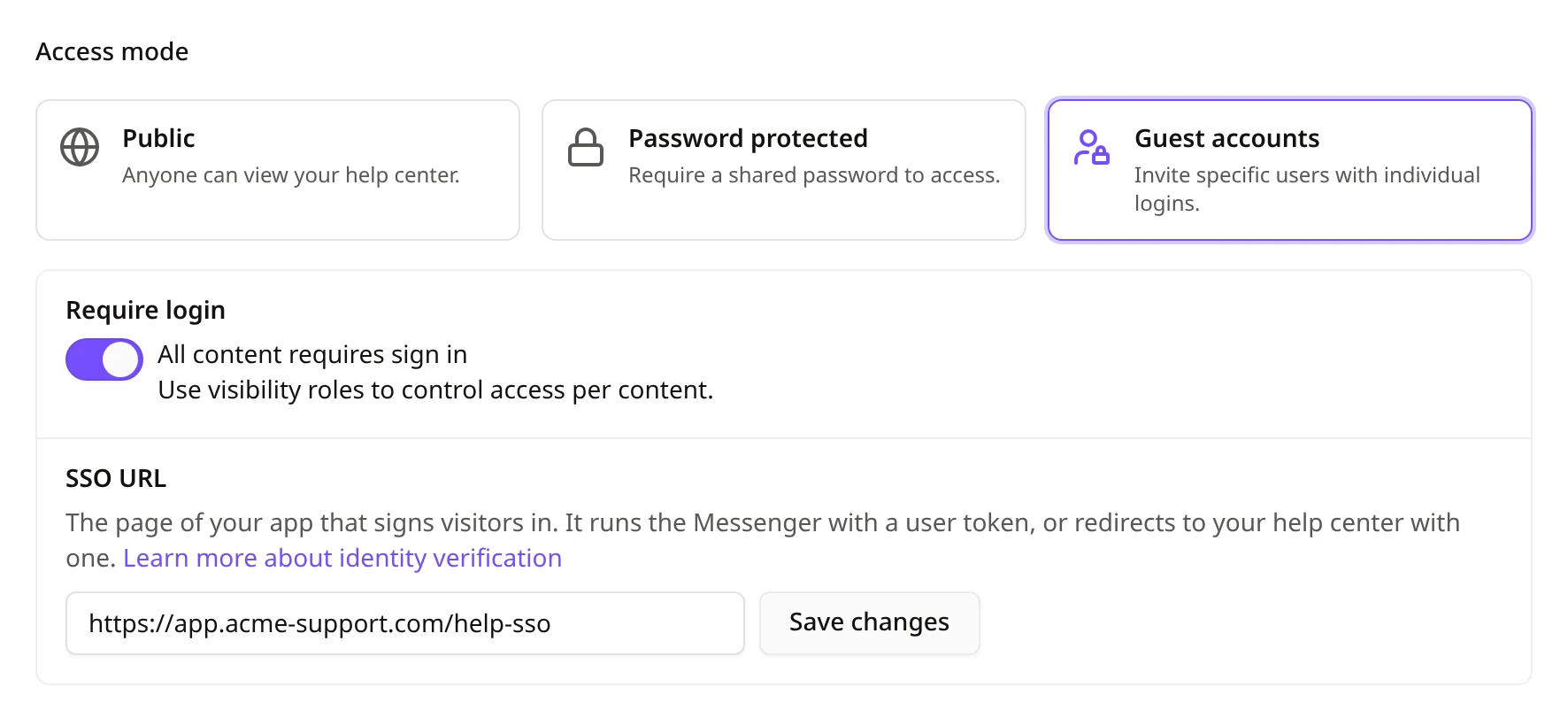
- Click Save changes.
The SSO URL must start with https://, use a domain name (not localhost) and be a page of your app, not of your help center. If your help center is on your own domain, use another host, or the same host outside the help center's path: with your help center at example.com/help, example.com/login works.
When Notiondesk sends a reader to your SSO URL, it keeps your own query string and adds return_to, the full address of the help center page the reader asked for. It also adds two parameters the Messenger uses. Leave them on the URL.
Step 2: Sign readers in on your SSO page
Pick the option that fits your app. Both use the same user token.
Option A: with the Messenger
Use this option if your app already runs the Messenger. On your SSO page, load the Messenger with a user token for the signed-in user. The Messenger signs the reader in to your help center and sends them back to the page they asked for. There's nothing else to call.
Make sure your SSO page:
- Signs the user in to your app first. A visitor without a user token isn't signed in to the help center.
- Loads the Messenger of the help center the reader came from, with a token signed with that help center's App Secret.
- Signs the token when the page loads, with an expiry of one hour or less. A later expiry is refused.
- Opens as a normal page, not inside a frame, and doesn't set the Messenger's
apiUrloption.
- Keeps the full address it was opened with. If your login sends the user to another site or tab first, bring them back to that same address, with all its parameters, before the Messenger loads.
The Messenger SDK documentation covers the React, Vue and script tag installs in its Help center sign-in section.
Option B: with a redirect from your server
Use this option if your app doesn't run the Messenger, or if you'd rather sign readers in on your server.
- On your SSO page, read
return_tofrom the address and keep it through your login.
- On your server, sign a user token for the signed-in user with your App Secret.
- Redirect the browser to
https://help.example.com/private/sso/jwt?jwt=TOKEN&return_to=RETURN_TO, with your help center's domain, the token andreturn_to, both values URL-encoded. With a help center atexample.com/help, the address starts withhttps://example.com/help/private/sso/jwt.
Here's an example in Node.js with Express. requireLogin stands for your own login check: it sends a signed-out user to your login page, then back to this address with its query string.
const jwt = require('jsonwebtoken');

const HELP_CENTER_URL = 'https://help.example.com';

app.get('/help-sso', requireLogin, (req, res) => {
  const now = Math.floor(Date.now() / 1000);
  const token = jwt.sign(
    {
      type: 'site_contact_app',
      iat: now,
      exp: now + 300,
      user_id: String(req.user.id),
      site_uuid: process.env.NOTIONDESK_SITE_UUID,
      email: req.user.email,
      name: req.user.name,
    },
    process.env.NOTIONDESK_APP_SECRET,
    { algorithm: 'HS256' },
  );

  const target = new URL(`${HELP_CENTER_URL}/private/sso/jwt`);
  target.searchParams.set('jwt', token);
  if (req.query.return_to) {
    target.searchParams.set('return_to', req.query.return_to);
  }
  res.redirect(target.toString());
});
Keep these rules in mind:
- Sign a new token for each redirect. A token signs a reader in once.
- Give it a short expiry. 5 minutes is enough, and more than one hour is refused. Keep your server clock in sync: a difference of up to 60 seconds is accepted.
- Keep the token under 8 KB, so keep any
custom_attributessmall.
- Pass
return_toback unchanged. Without it, or with an address outside your help center, the reader lands on the help center's home page.
- Redirect from your server. Never put this link in an email, since the token is in the address.
You can also send users straight to this address from your app without an SSO URL, for example from a Help link in your app's menu. Set return_to to the help center page you want them to open.
Step 3: Test it
- Open a private browser window and go to a page of your help center that needs sign-in.
- Check that you land on your SSO URL, sign in to your app, and come back to the same help center page, signed in.
If it doesn't work, check a token your app signs:
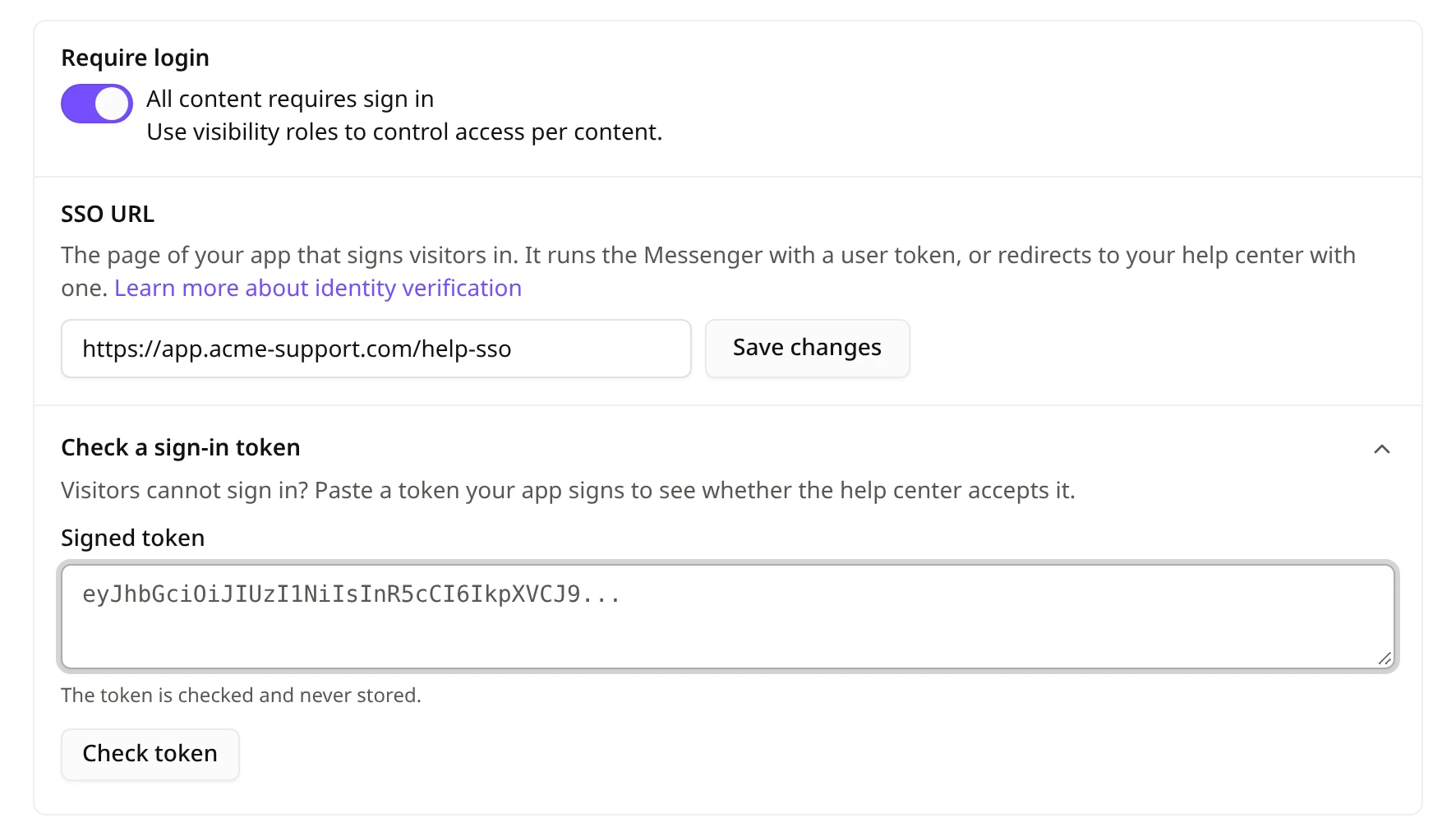
- In Settings > Access, under SSO URL, click Check a sign-in token. It appears once an SSO URL is saved.
- Paste the token, then click Check token. You'll see whether your help center accepts it, and why not. The token is checked and never stored.
Choose when readers go to your SSO URL
Require login, the switch above SSO URL, is on by default. With it on, every reader who isn't signed in goes to your SSO URL when they open your help center.
With it off, anyone can browse your help center, and only these readers are sent to your SSO URL:
- Readers who open an article that needs sign-in.
- Readers who follow a help center link that ends with
nd_sign_in=1, such ashttps://help.example.com/en/articles/billing?nd_sign_in=1. Add it to the help center links inside your app.
- Readers who click Continue with your account on the help center's sign-in page.
Guests you invited can still choose Use email and password on the sign-in page.
Link readers to guest accounts you invited
A token for a user you never invited signs them in as a new reader. To give a user the access and role of a guest account you invited by email:
- Include the user's
emailin the token from the first time you identify them. A user first identified without it keeps a separate reader, without the guest account's access, even if you add the email later.
- If your app hasn't verified a user's email address, send
email_verified: false. That user isn't linked to the guest account. If you leave it out, the email counts as verified. Send it astrueorfalse, not as text: a value like"true"counts asfalse.
- A guest account links to one
user_id. A second user who signs in with the same email keeps a separate reader.
If the guest's invitation was still pending, it's accepted automatically.
Troubleshooting
| Problem | Cause | Fix |
|---|---|---|
| The reader lands on the sign-in page with "We could not sign you in automatically. Try again, or sign in below." | The token was refused: it expired, was already used, expires more than one hour ahead, or was signed with another App Secret | Run Check a sign-in token, and sign a new token for each redirect |
| The reader stays on your SSO page | The Messenger had no user token or an invalid one, the address lost its parameters during your login, the page is in a frame, or apiUrl is set | Run Check a sign-in token, and check the list in Option A |
| The reader is signed in but lands on the home page | return_to was missing or isn't a page of your help center | Pass return_to back unchanged |
| Readers are never sent to your SSO URL | No SSO URL is saved, or Require login is off | Save an SSO URL, then add nd_sign_in=1 to your help center links or turn on Require login |
| "Enter a URL that starts with https://" when you save | The SSO URL isn't an https:// address | Use the https:// address of a page of your app |
| "Enter a page of your app, not of your help center." when you save | The SSO URL is on your help center's address | Use another host, or a path outside the help center |
| Check a sign-in token says "This token is not valid yet." | iat is in milliseconds, or your server clock is ahead | Use seconds, and sync your server clock |
| A reader doesn't get the access of the guest account you invited | The token had no email the first time, or email_verified isn't true | See "Link readers to guest accounts you invited" above |
Common questions
Do readers sign in twice?
No. Readers signed in to your app go through your SSO URL and come back signed in, without a Notiondesk login.
Which option should I choose?
Option A if your app already runs the Messenger on a page you control. Option B if it doesn't, or if your login runs on your server.
Can readers still sign in with an email and password?
Yes. Guests you invited can choose Use email and password on the help center's sign-in page.
How long does a reader stay signed in?
Up to 12 hours. Signing out of your app doesn't sign them out of the help center, so keep that in mind on shared computers.
Who can change the SSO URL?
Workspace owners, Admins and Editors.
How do I turn SSO off?
Clear the SSO URL field and click Save changes. Readers then sign in with their email and password.