You can customize how Automatic AI Translation handles your content by choosing a tone and style that matches your brand voice. This helps ensure translations feel natural and aligned with your company's communication style across all languages.
What is translation behavior?
Translation behavior controls how Automatic AI Translation interprets and translates your content:
- Tone controls the formality and feel of translations
- Style controls how detailed or concise translations are
Both settings work together to shape your Automatic AI Translation output and help maintain consistent brand voice across all languages.
Enable behavior customization
- Go to Settings → Translation
- Find the Behavior card
- Toggle Customize translation behavior on
- Choose your preferred tone and style
- Click Save changes
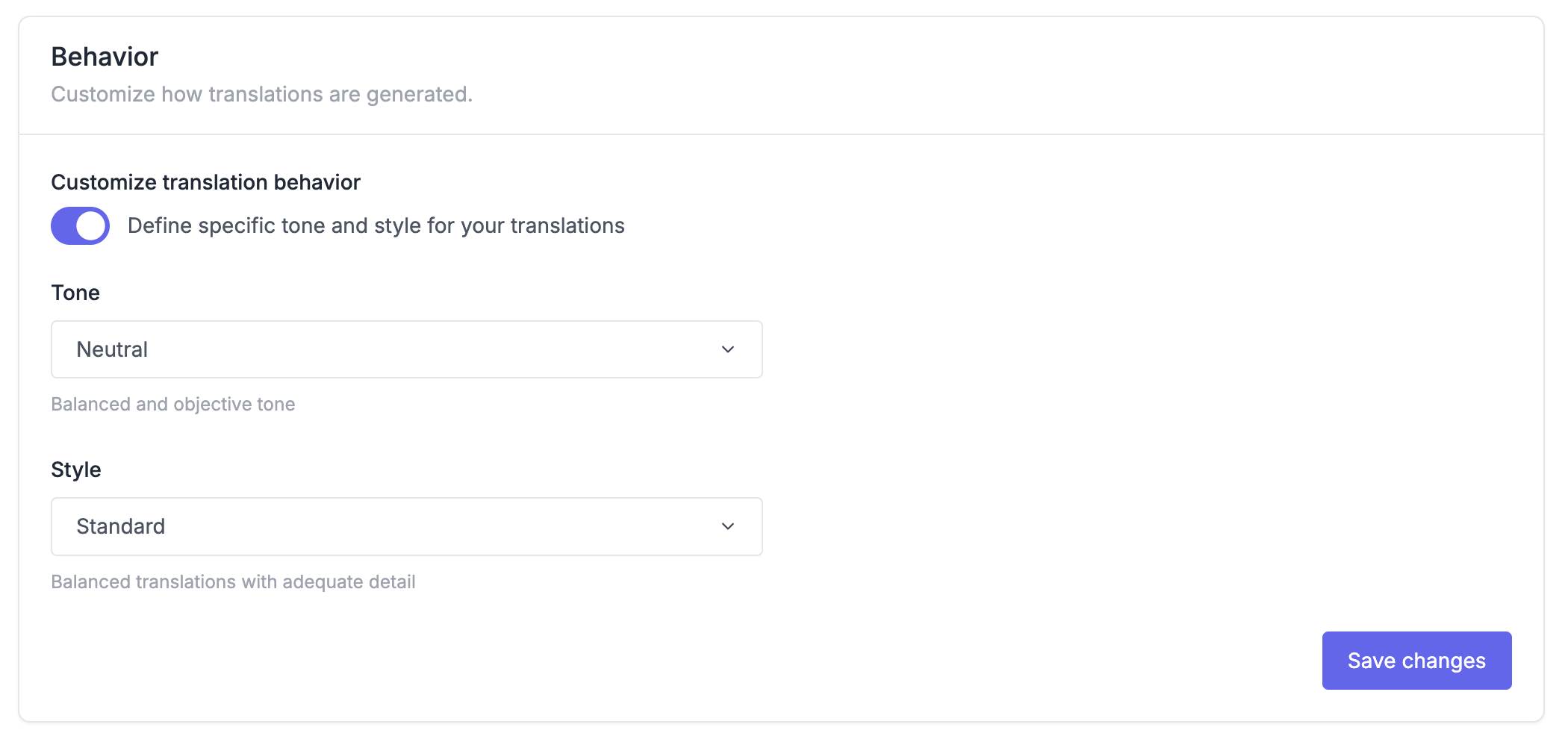
Choose your tone
Select the tone that best matches your brand's voice:
| Tone | Best for | Example use case |
|---|---|---|
| Formal | Corporate, legal, official documentation | Enterprise knowledge bases, compliance docs |
| Neutral | General purpose (default) | Standard help centers, product docs |
| Friendly | Consumer products, casual brands | Startup help centers, community docs |
| Marketing | Promotional content, announcements | Product launches, feature announcements |
| Technical | Developer docs, API references | Technical documentation, developer guides |
Choose your style
Select how verbose or concise you want translations to be:
| Style | Description | Best for |
|---|---|---|
| Concise | Shorter, more direct translations | Quick reference guides, FAQs |
| Standard | Balanced level of detail (default) | General help articles, tutorials |
| Detailed | More thorough, elaborate translations | Complex tutorials, in-depth guides |
How tone and style work together
Tone and style combine to create translations that match your brand:
- Tone shapes the voice (formal vs friendly)
- Style shapes the length and depth (brief vs detailed)
For example:
- Formal + Concise = Professional, to-the-point documentation
- Friendly + Detailed = Approachable, thorough explanations
- Technical + Standard = Clear, balanced developer docs

Note: Changes apply to new translations only. Existing translations are not automatically updated when you change behavior settings.