Let visitors send you a message without leaving your help center. This guide shows how to turn on the contact form, choose who receives the messages, and add a Contact Us button so visitors can find it.
The contact form is available on the Pro and Enterprise plans.
Turn on the contact form
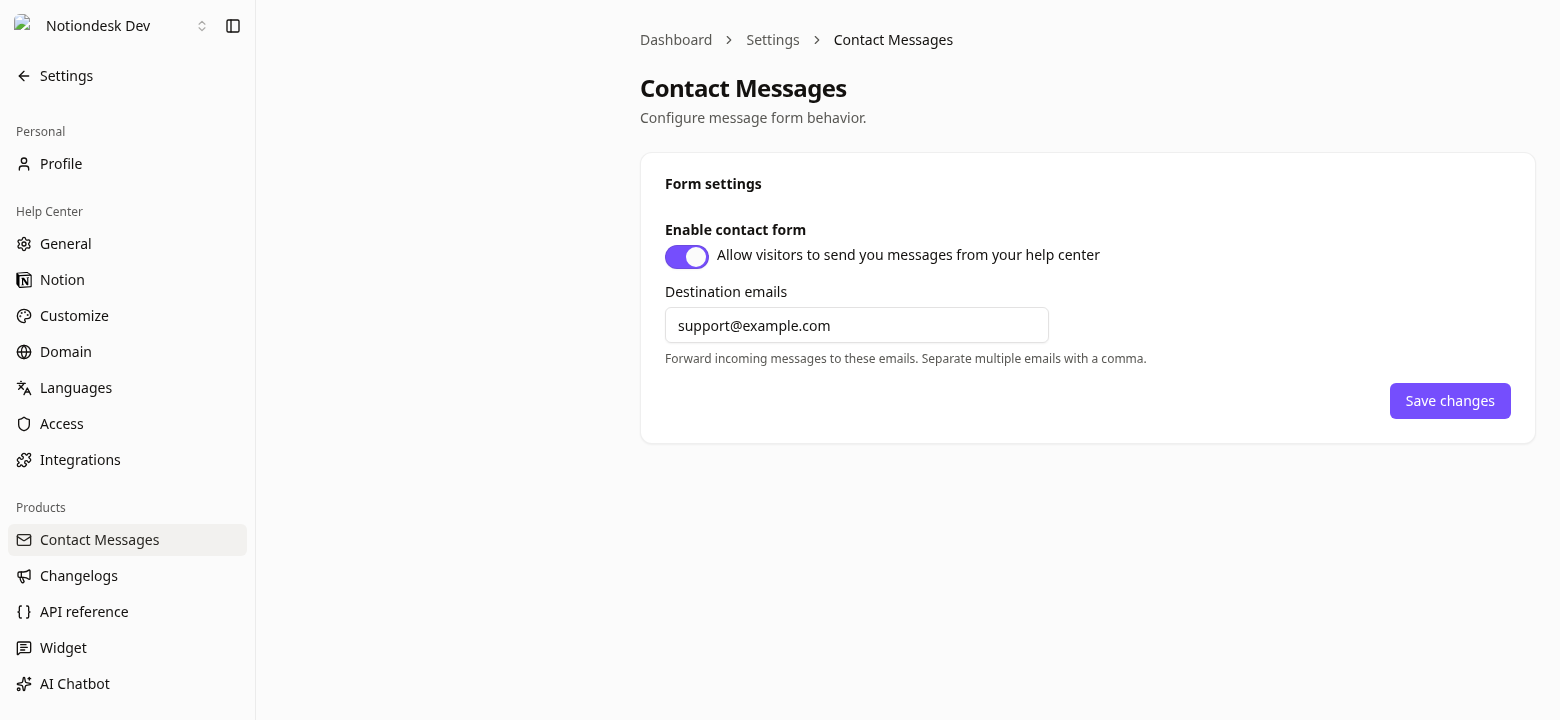
- In your dashboard, open Settings, then Contact Messages in the Products section.
- Turn on Enable contact form.
- In Destination emails, which appears once the form is on, enter the addresses that should receive new messages. Separate several addresses with a comma, for example
[email protected], [email protected].
- Click Save changes.
Add a Contact Us button to your help center
Visitors reach the form through the Contact Us button.
- In your dashboard, open Settings, then Customize.
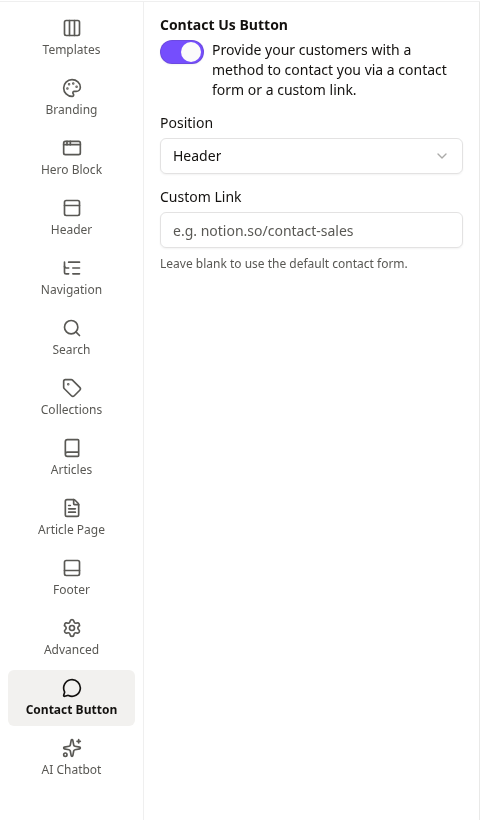
- In the left menu, click Contact Button, then turn on Contact Us Button.
- Under Position, choose Header or Footer.
- Leave Custom Link empty to open your contact form. If you prefer to send visitors somewhere else, such as a booking page, paste that link instead.
- Click Save changes at the top of the page.
Read and answer messages
Every message is sent to your destination emails. You can also find all messages in your dashboard under Contact Messages, where a red number shows how many are unread. To answer, reply to the notification email: your reply goes straight to the visitor's email address.
FAQ
Can I change who receives contact form messages?
Yes. Update Destination emails in Settings, then Contact Messages, and click Save changes. See also Custom email for contact form notifications.
Can I send visitors to my own contact page instead?
Yes. In the Contact Button section of Customize, paste your page's address in Custom Link. The button then opens that page instead of the built-in form.
How do I hide the contact form?
Turn off Enable contact form in Settings, then Contact Messages, and turn off Contact Us Button in Customize so visitors don't see a button that leads nowhere.
Can I turn the contact form on or off with the API?
Yes. See Update help center settings with the Notiondesk API. Destination emails can only be changed in the dashboard.