Control where and how AI Search appears when visitors ask questions on your help center. Choose between a modal overlay or a side panel, and position it to fit your layout.
Access display settings
AI Search display options are in your help center customization settings:
- Go to Settings → Customize in the left sidebar
- Select the AI Chatbot section
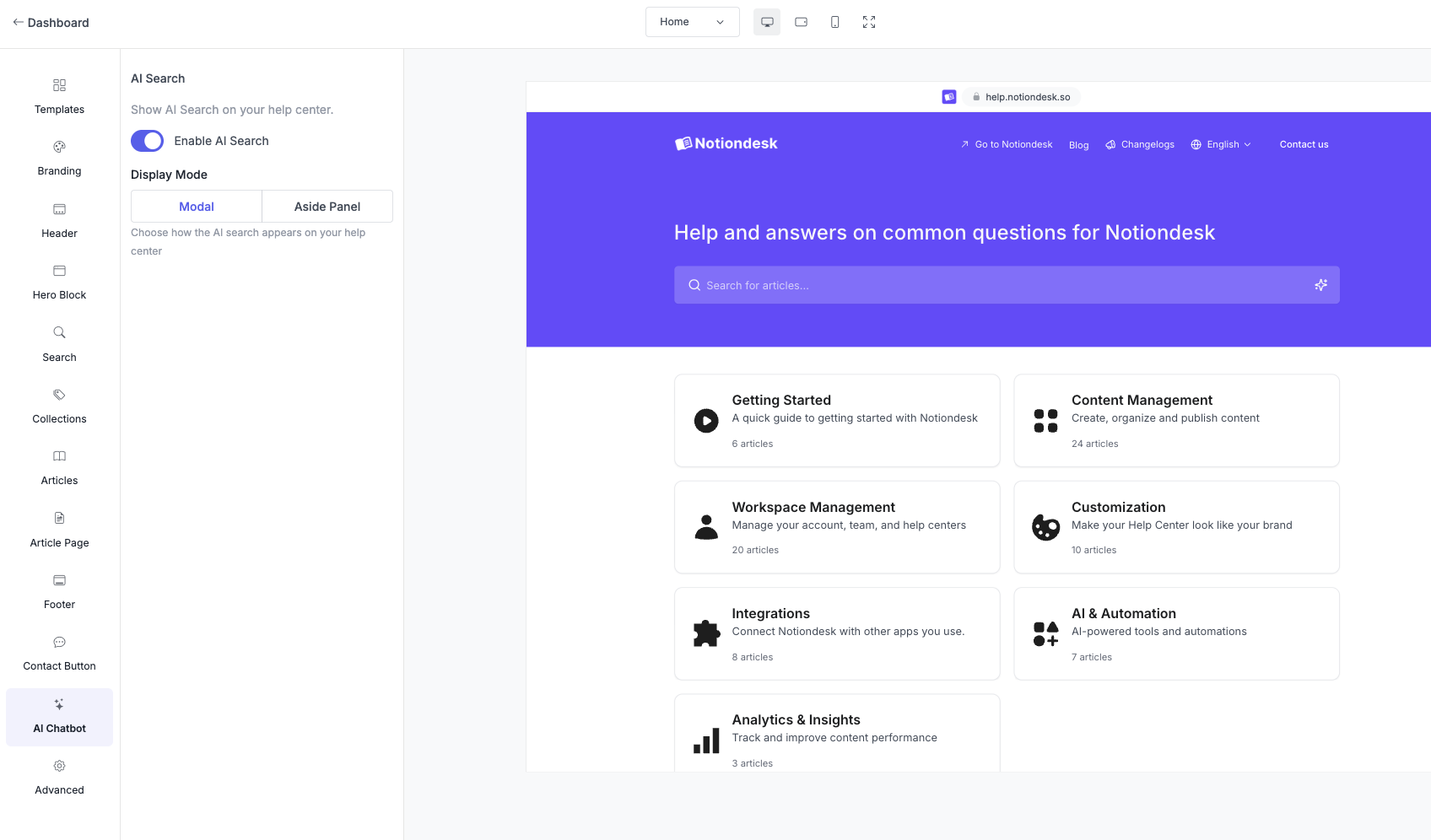
Enable or disable AI Search
The AI Search toggle controls whether visitors see AI-powered answers when they search.
- On — Visitors get AI-generated responses alongside traditional search results
- Off — Search works normally without AI responses
To change this setting:
- Find the AI Search toggle
- Click to turn it on or off
- Click Save

Choose a display mode
The display mode determines how AI responses appear on your help center.
Set the display mode
- In Settings → Customize → AI Chatbot
- Find Display Mode
- Select Modal or Aside Panel
- Click Save
Modal
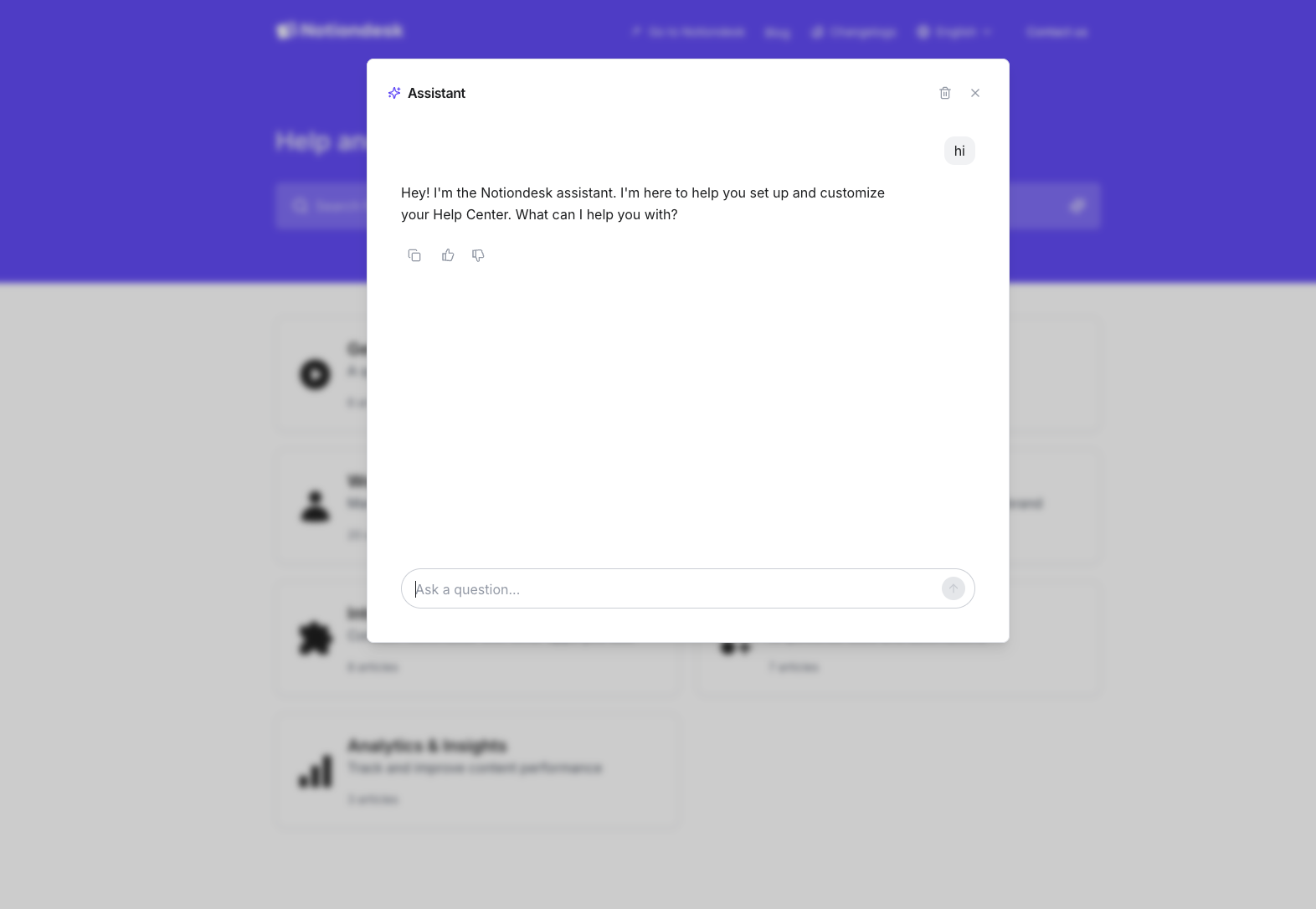
AI responses appear in a centered overlay on top of the page.
Best for:
- Focused interactions where visitors want a quick answer
- Help centers with busy layouts
- Mobile-friendly experiences (modal adapts well to small screens)
How it works:
- Visitor types a question in search
- Modal opens with the AI response
- Visitor can close the modal to return to browsing
- Background content remains visible but dimmed
Aside Panel
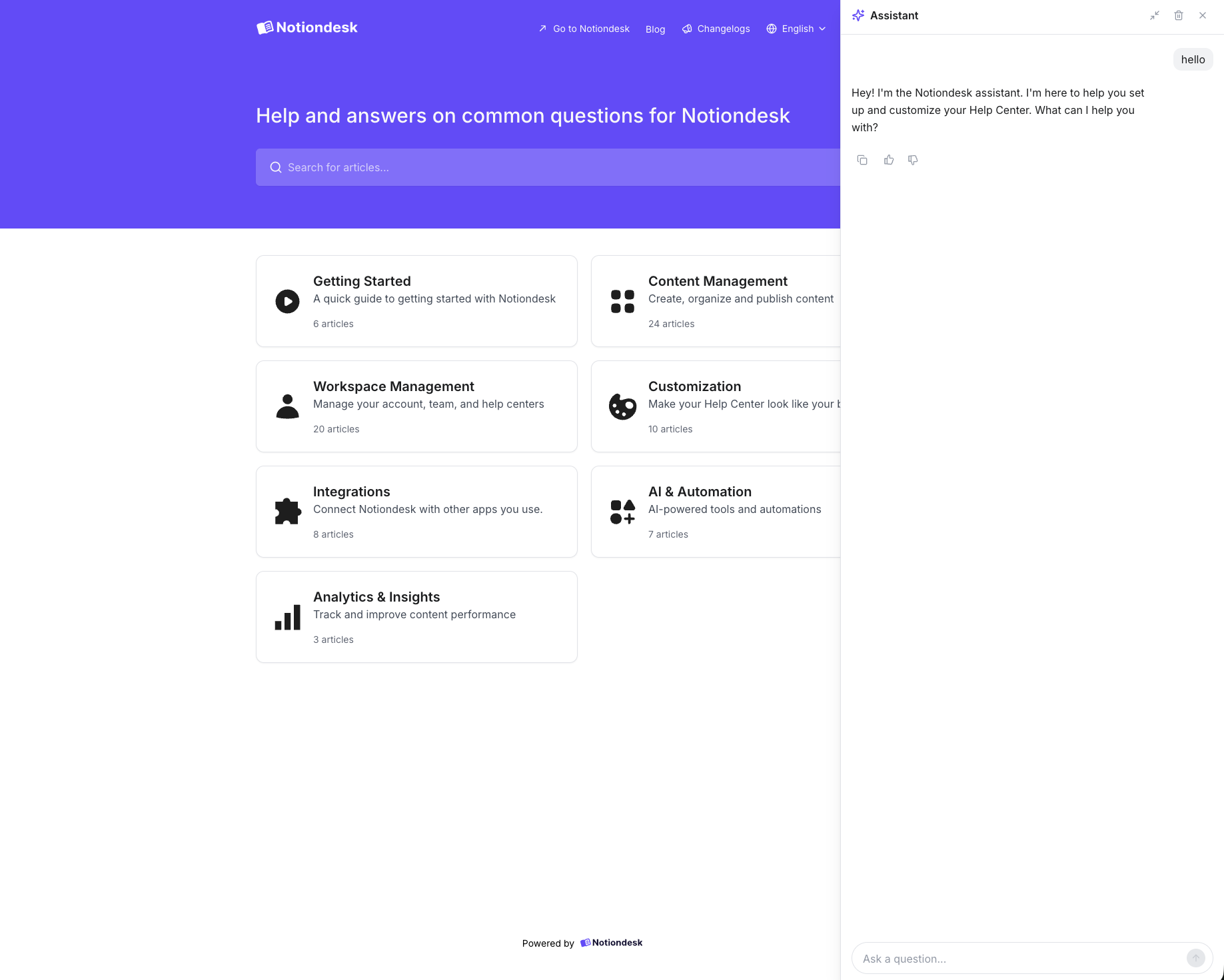
AI responses appear in a side panel that slides in from the left or right.
Best for:
- Browsing alongside search results
- Visitors who want to compare AI answers with article listings
- Desktop users with wider screens
How it works:
- Visitor types a question in search
- Panel slides in from the configured side
- Visitor can continue browsing while the panel stays open
- Content shifts to make room for the panel
Set aside panel position
When using Aside Panel mode, you can choose which side of the screen the panel appears on.
| Position | Behavior |
|---|---|
| Left | Panel slides in from the left side |
| Right | Panel slides in from the right side |
This option only appears when Display Mode is set to Aside Panel.
To change the position:
- Make sure Display Mode is set to Aside Panel
- Find Aside Position
- Select Left or Right
- Click Save