Get your AI Chatbot answering visitor questions in just a few minutes. This guide walks you through enabling the chatbot and configuring AI Search on your help center.

Make sure you have published articles, the chatbot needs content to learn from. Publish at least a few articles before enabling it.
Step 1: Enable the AI Chatbot
First, turn on the chatbot in your dashboard.
- Go to AI Chatbot → Settings in the left sidebar
- Find the General section
- Toggle Enabled to on
- Click Save
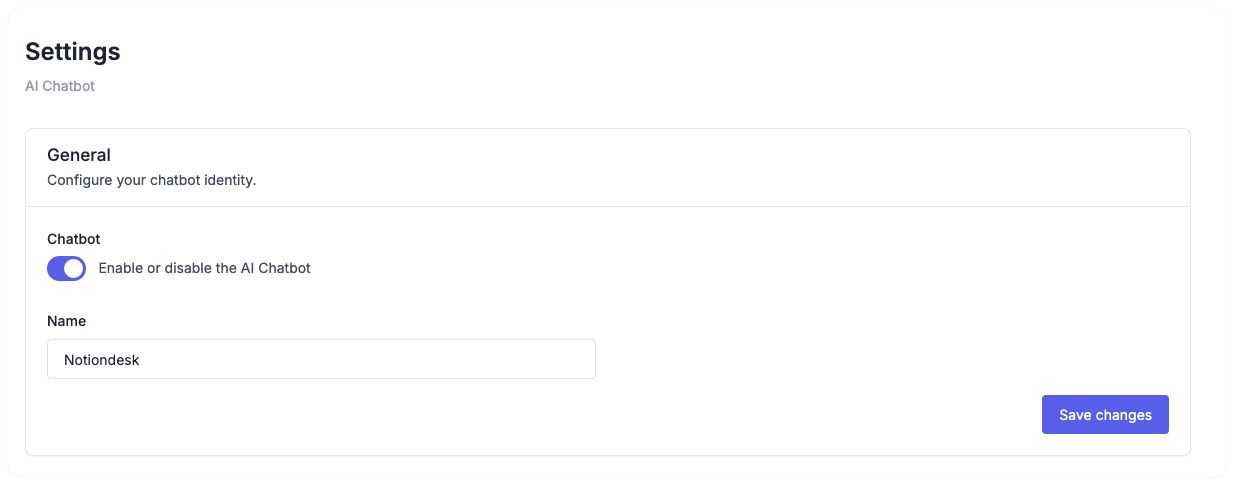
Once enabled, the chatbot starts indexing your published articles.
Set a custom name
By default, the chatbot is named "AI Chatbot". You can change this to match your brand:
- In the General section
- Enter your preferred name in Name field
- Click Save
Examples: "Support Assistant", "Help Bot", "Ask Acme", or your product name.
Step 2: Enable AI Search on your help center
The chatbot appears to visitors through AI Search. You need to enable this in your help center customization settings.
- Go to Settings → Customize in the left sidebar
- Select the AI Chatbot section
- Toggle AI Search to on
- Click Save
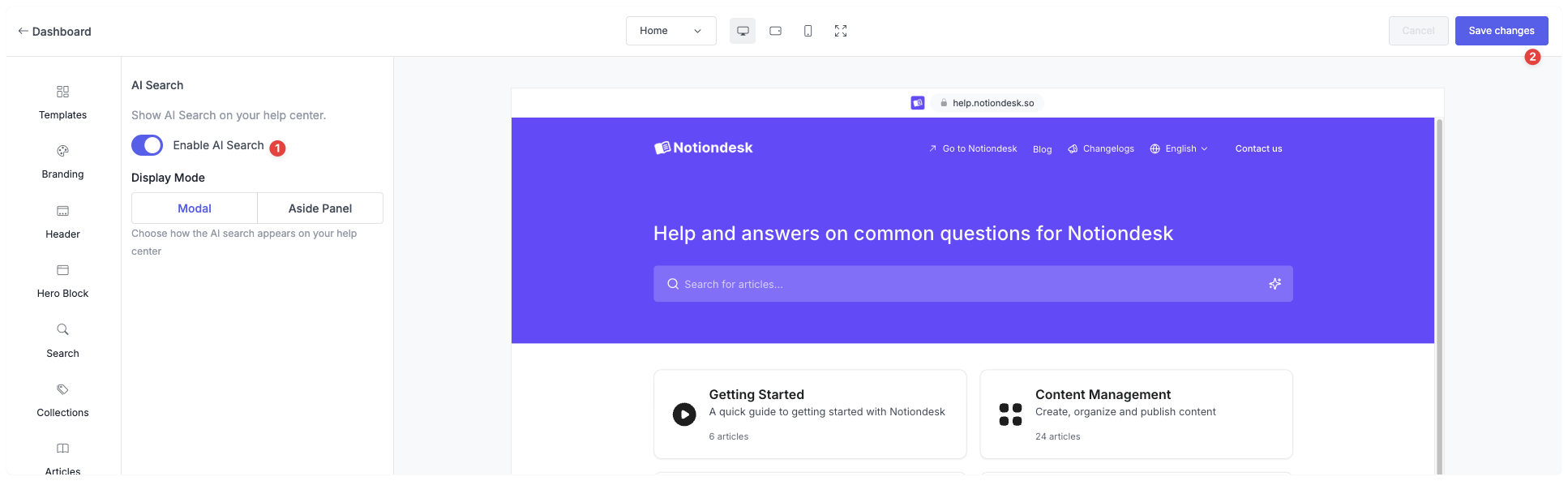
Your help center now shows AI-powered answers when visitors search.
Step 3: Choose a display mode
Decide how AI Search appears to your visitors:
| Display Mode | Description | Best for |
|---|---|---|
| Modal | AI response appears in a centered overlay | Quick answers, focused interactions |
| Aside Panel | AI response appears in a side panel | Browsing, exploring multiple topics |
To set the display mode:
- Select Modal or Aside Panel under Display Mode
- If you chose Aside Panel, select the position (Left or Right)
- Click Save
Troubleshooting
AI Search doesn't appear
- Confirm the chatbot is enabled in AI Chatbot → Settings
- Confirm AI Search is enabled in Settings → Customize → AI Chatbot
- Clear your browser cache and refresh the help center
Chatbot gives poor or incomplete answers
- Check that you have published articles covering the topic
- Make sure articles are synced (go to Settings → General and click Sync Now)
- The chatbot only knows what's in your published articles, add more content for better coverage.