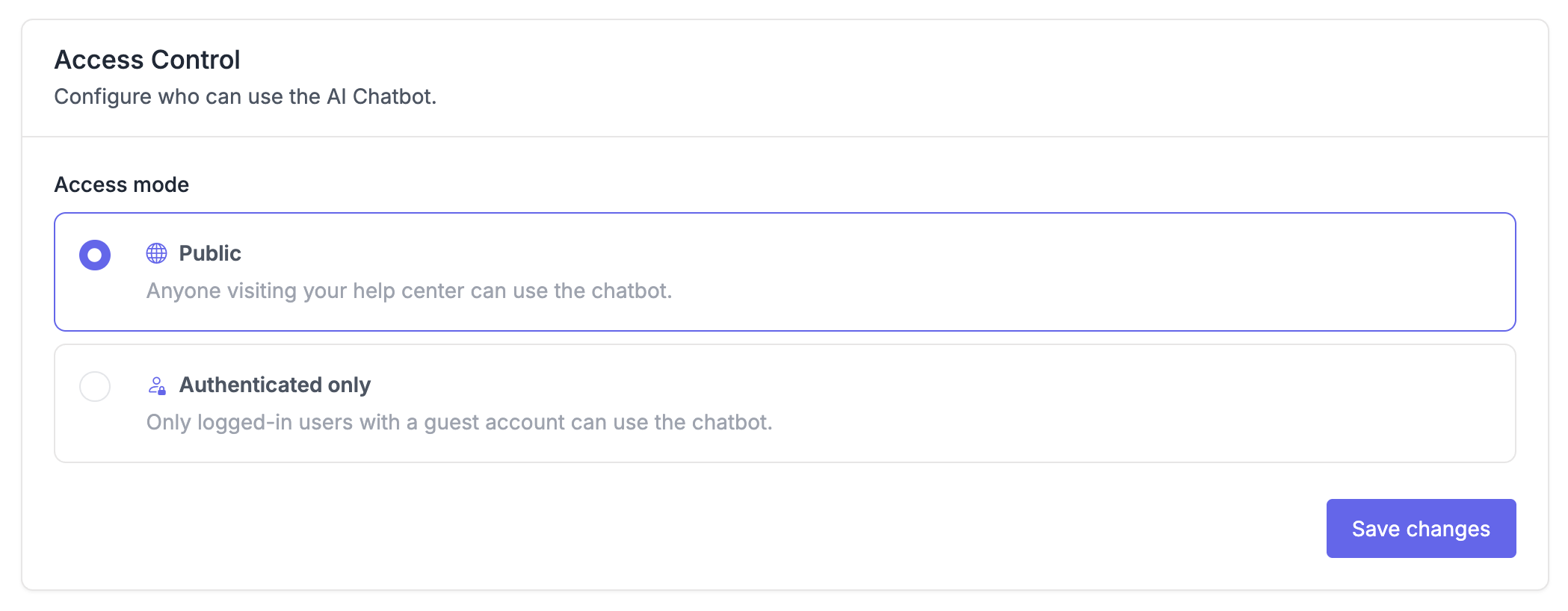
Control who can use the AI Chatbot on your help center. By default, the chatbot is available to everyone. You can change this so only logged-in users can interact with it.
Before you start
Authenticated mode requires Guest Accounts. If you haven't set them up yet, follow this guide first: Restricting help center access to signed-in users.
Switch to authenticated mode
- Go to AI Chatbot > Settings.
- Select Authenticated under Access Control section.
- Click Save changes.
The chatbot will now check whether a visitor is logged in before allowing them to start a conversation. Visitors without a guest account won't be able to send messages.
To switch back, select Public and click Save changes.
How it works with help center access
The chatbot access mode and your help center privacy settings are configured separately. Here's how they work together:
| Help Center Access | Chatbot Access | Result |
|---|---|---|
| Public | Public | Anyone can view articles and use the chatbot |
| Public | Authenticated | Anyone can view articles, only logged-in users can use the chatbot |
| Guest Accounts | Either | Only logged-in users can view articles and use the chatbot |