You can use Nginx to serve your Notiondesk help center from a subpath of your main domain.
For example, instead of using a subdomain like help.yourdomain.com, you can make your help center available from:
yourdomain.com/help
yourdomain.com/docs
yourdomain.com/support
This setup is useful if your main website is hosted on a VPS, dedicated server, or infrastructure where Nginx is already used as the web server or reverse proxy.
Visitors stay on your main domain, while the help center content is behind the selected subpath.
Before you start
Before setting up subpath hosting with Nginx, make sure you have:
- Access to the server hosting your main website
- Access to your Nginx configuration
- A subpath you want to use for your help center, such as
/help,/docs, or/support
You should also know which Nginx server block handles your main website domain. This is where you will add the Notiondesk reverse proxy configuration.
Enable subpath hosting in Notiondesk
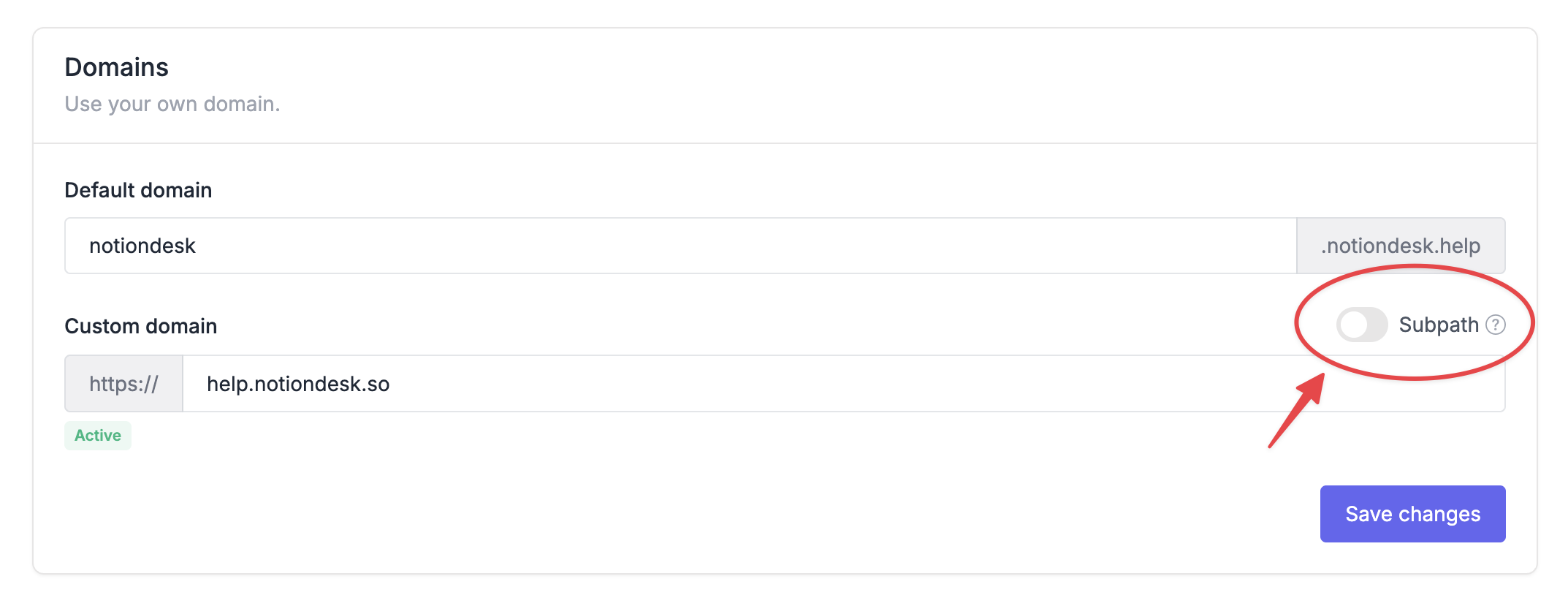
First, enable subpath hosting from your Notiondesk dashboard.
- Open your Notiondesk dashboard
- Go to
Settings > General
- Scroll to the
Domainssection
- Enable the
Subpathswitch
- Save changes
- Copy the generated Nginx configuration
Notiondesk generates the configuration with the correct values for your help center, including your Notiondesk help center domain and selected subpath.
Add the Nginx configuration
Next, add the generated Nginx configuration to your website server configuration.
Open the Nginx configuration file that handles your main website domain, then find the correct server block.
The server block should be the one serving your main domain, for example:
server {
    server_name yourdomain.com;

    # Your existing website configuration
}
Paste the generated Notiondesk location blocks inside this server block.
The configuration should handle:
- The exact help center subpath, for example
/help
- Nested help center pages, for example
/help/
- Notiondesk internal routes, for example
/_nd/
Nginx reverse proxy example
Here is an example of the Nginx reverse proxy configuration.
location = /help {
    proxy_pass https://your-help-center.notiondesk.help;
    proxy_ssl_server_name on;
    proxy_ssl_name your-help-center.notiondesk.help;
    proxy_set_header Host $host;
    proxy_set_header X-Forwarded-Host $host;
    proxy_set_header X-Forwarded-Proto $scheme;
    proxy_set_header X-Site-Path-Prefix /help;
}

location ^~ /help/ {
    proxy_pass https://your-help-center.notiondesk.help;
    proxy_ssl_server_name on;
    proxy_ssl_name your-help-center.notiondesk.help;
    proxy_set_header Host $host;
    proxy_set_header X-Forwarded-Host $host;
    proxy_set_header X-Forwarded-Proto $scheme;
    proxy_set_header X-Site-Path-Prefix /help;
}

location ^~ /_nd/ {
    proxy_pass https://your-help-center.notiondesk.help;
    proxy_ssl_server_name on;
    proxy_ssl_name your-help-center.notiondesk.help;
    proxy_set_header Host $host;
    proxy_set_header X-Forwarded-Host $host;
    proxy_set_header X-Forwarded-Proto $scheme;
}
This example uses:
your-help-center.notiondesk.helpas the Notiondesk help center domain
/helpas the selected subpath
Your own configuration may use different values.
Test and reload Nginx
After adding the configuration, test your Nginx configuration before reloading it.
Run:
nginx -tIf the test is successful, reload Nginx:
sudo systemctl reload nginxDepending on your server setup, the reload command may be different.
After reloading Nginx, open your help center from the subpath you selected. Check that the main help center page loads correctly.