You can host your Notiondesk help center on a subpath of your website using Vercel and Next.js.
For example, instead of using a subdomain like help.yourdomain.com, you can serve your help center from: yourdomain.com/help , yourdomain.com/docs or yourdomain.com/support
This setup is useful when your website is already hosted on Vercel and you want your documentation, knowledge base, or support content to stay under the same domain.
In this guide, you'll learn how to configure a Next.js proxy so that visitors can access your help center directly from your chosen subpath while keeping your main website unchanged.
Before you start
Before setting up subpath hosting with Vercel, make sure you have:
- An existing Notiondesk help center
- Access to your Vercel project
- Access to your website codebase
- A website deployed on Vercel
- A subpath you want to use for your help center, such as:
/help
/docs
/support
- Subpath hosting enabled in Notiondesk

Enable subpath hosting in Notiondesk
Open your Notiondesk dashboard and go to Settings > General.
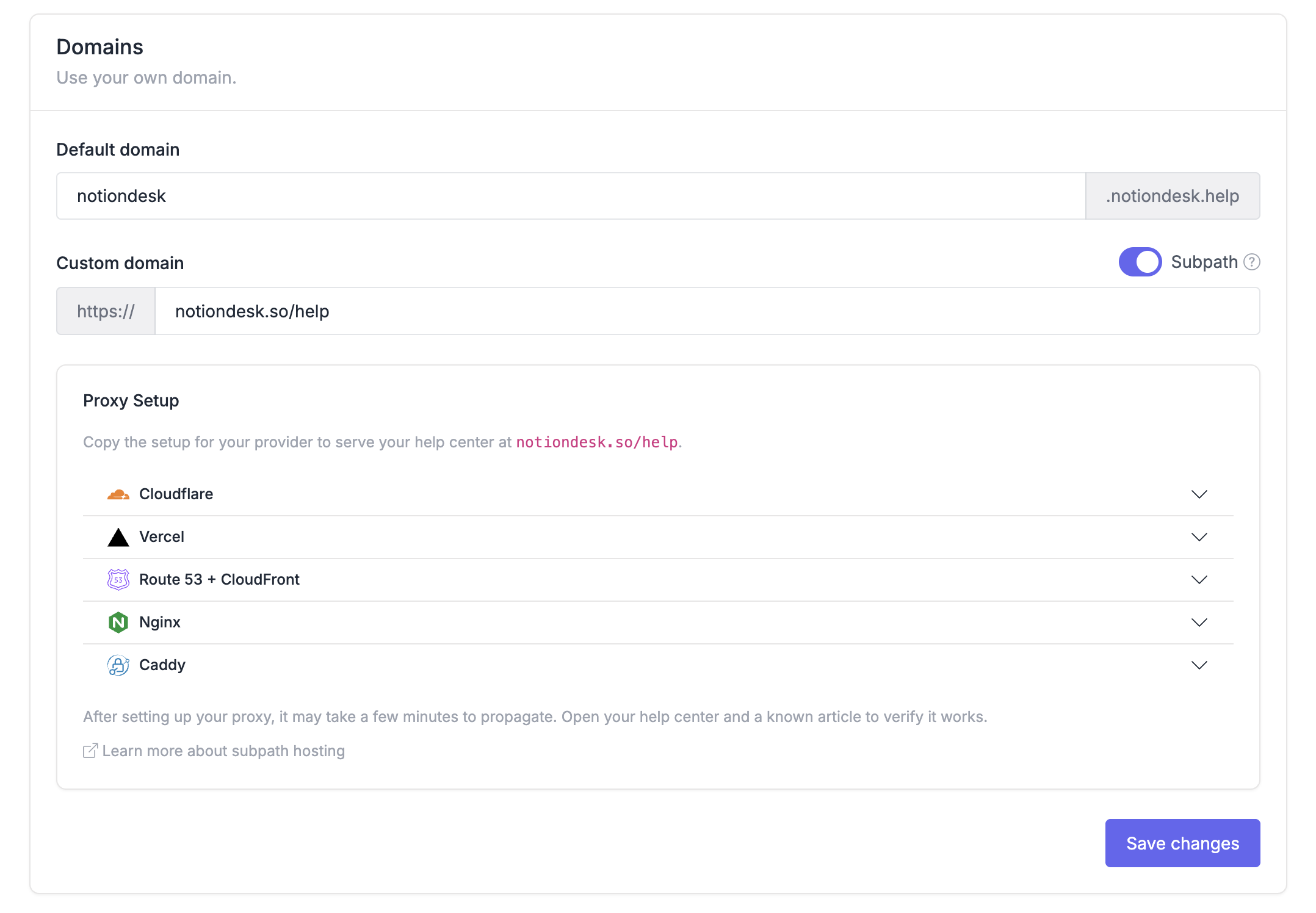
Scroll to the Domains section, then enable the Subpath switch.
Select Vercel as the setup provider. Notiondesk will generate the Vercel / Next.js proxy code for your help center.
Copy the generated code. You will add it to your Next.js project in the next step.
Add the proxy file to your Next.js project
After copying the generated code from Notiondesk, add it to your Next.js project.
The file name depends on your Next.js version:
- For Next.js 15 or below, use
middleware.ts
- For Next.js 16 or above, use
proxy.ts
Add the file at the root of your project:
middleware.tsOr, if your project uses a src directory:
src/middleware.tsFor Next.js 16 or above, use the same location but with proxy.ts instead.
Paste the code generated by Notiondesk into this file.
This proxy will forward requests from your selected subpath, such as /help, to your Notiondesk help center without changing the URL in the browser.
Configure the matcher
The matcher tells Next.js which routes should be handled by the Notiondesk proxy.
For a help center hosted at /help, the matcher should include:
matcher: ["/help", "/help/:path*", "/_nd/:path*"]If you're using a different subpath, such as /docs or /support, replace /help with your chosen subpath.
/_nd/:path* route is required. Without it, some assets and help center functionality may not work correctly.Vercel / Next.js proxy example
Below is an example of a Next.js proxy configuration for a help center hosted at /help.
// Next.js <= 15: middleware.ts
// Next.js 16+: proxy.ts with export function proxy
import { NextResponse } from "next/server";
import type { NextRequest } from "next/server";

const ORIGIN = "https://your-help-center.notiondesk.help";
const CUSTOM_HOST = "yourdomain.com";
const SUBPATH = "/help";

function isSubpathRequest(pathname: string) {
  return pathname === SUBPATH || pathname.startsWith(SUBPATH + "/");
}

export function middleware(request: NextRequest) {
  const isSubpath = isSubpathRequest(request.nextUrl.pathname);
  const target = new URL(request.nextUrl.pathname + request.nextUrl.search, ORIGIN);

  const headers = new Headers(request.headers);
  headers.set("Host", CUSTOM_HOST);
  headers.set("X-Forwarded-Host", CUSTOM_HOST);
  headers.set("X-Forwarded-Proto", "https");

  if (isSubpath) {
    headers.set("X-Site-Path-Prefix", SUBPATH);
  }

  return NextResponse.rewrite(target, { request: { headers } });
}

export const config = {
  matcher: ["/help", "/help/:path*", "/_nd/:path*"],
};Deploy your Vercel project
Once you've added the proxy file and configured the matcher, deploy the changes to Vercel.
- Commit your changes
- Push your code to your Git repository
- Wait for the Vercel deployment to complete
After the deployment is live, requests to your selected subpath will be routed through the proxy and served by your Notiondesk help center.
Verify your setup
After the deployment is complete, verify that your help center is working correctly.
Open your help center homepage. Then open a known article URL and confirm that the page loads successfully.
Confirm that:
- The help center loads under your main domain
- Article pages open correctly
- Images, styles, and scripts load properly
- The browser URL stays on your custom domain
- The main website continues to work outside the help center subpath
If everything loads correctly, your subpath hosting setup is complete!