You can host your Notiondesk help center on a subpath of your main domain using AWS CloudFront. For example, instead of using a subdomain like help.yourdomain.com, you can serve your help center from: yourdomain.com/help , yourdomain.com/docs , yourdomain.com/support
This setup is useful when your main website already uses CloudFront and you want your documentation or support content to stay under the same domain.
Before you start
Before setting up subpath hosting with AWS CloudFront, make sure you have:
- An existing Notiondesk help center
- Access to your AWS account
- Access to the CloudFront distribution used by your main website
- Permission to edit CloudFront origins and behaviors
- A subpath you want to use for your help center, such as:
/help
/docs
/support
- Subpath hosting enabled in Notiondesk

Enable subpath hosting in Notiondesk
First, enable subpath hosting from your Notiondesk dashboard.
- Open your Notiondesk dashboard
- Go to
Settings > General
- Scroll to the
Domainssection
- Enable the
Subpathswitch
- Select
AWS CloudFrontas the setup provider
- Copy the generated CloudFront setup values
Notiondesk will generate the origin domain and custom headers you need for your help center.

Add the origin in CloudFront
Next, add your Notiondesk help center as a new origin in CloudFront.
An origin is the destination CloudFront sends requests to. In this case, the origin is your Notiondesk help center.
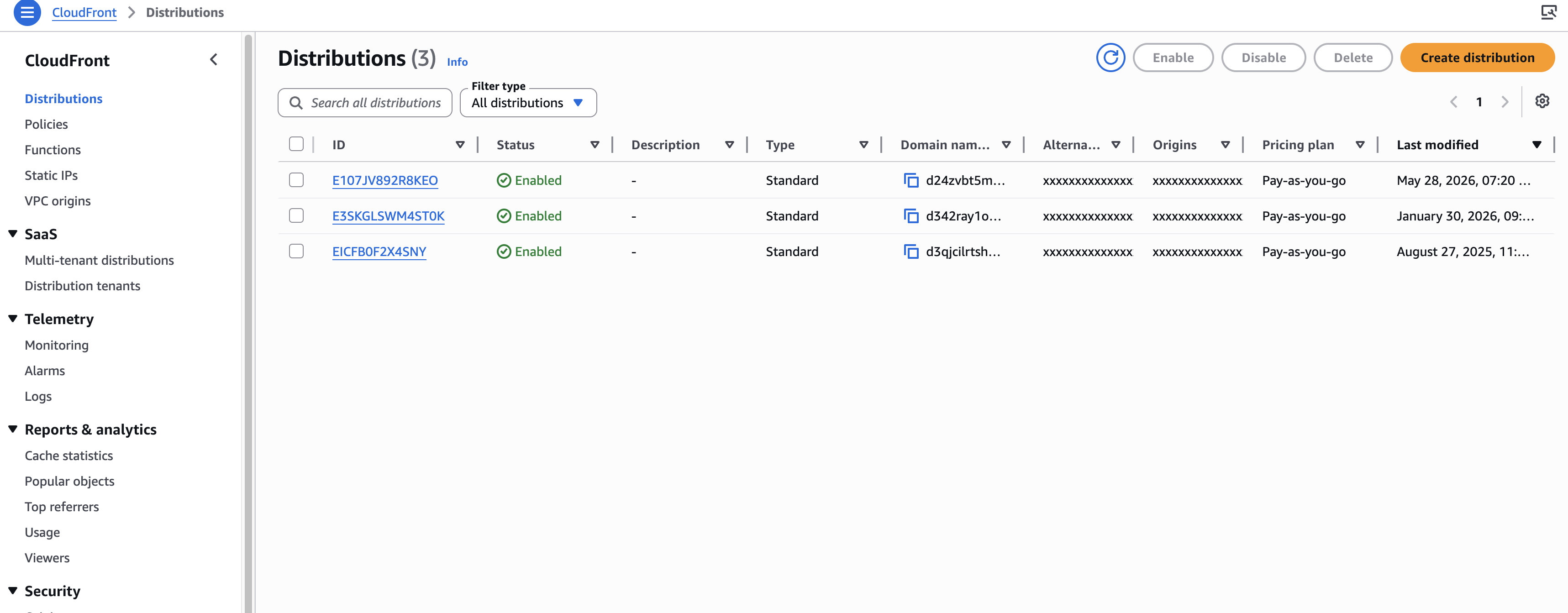
- Open the AWS Console
- Go to
CloudFront
- Open the distribution used by your main website
- Go to the
Originstab
- Click
Create origin
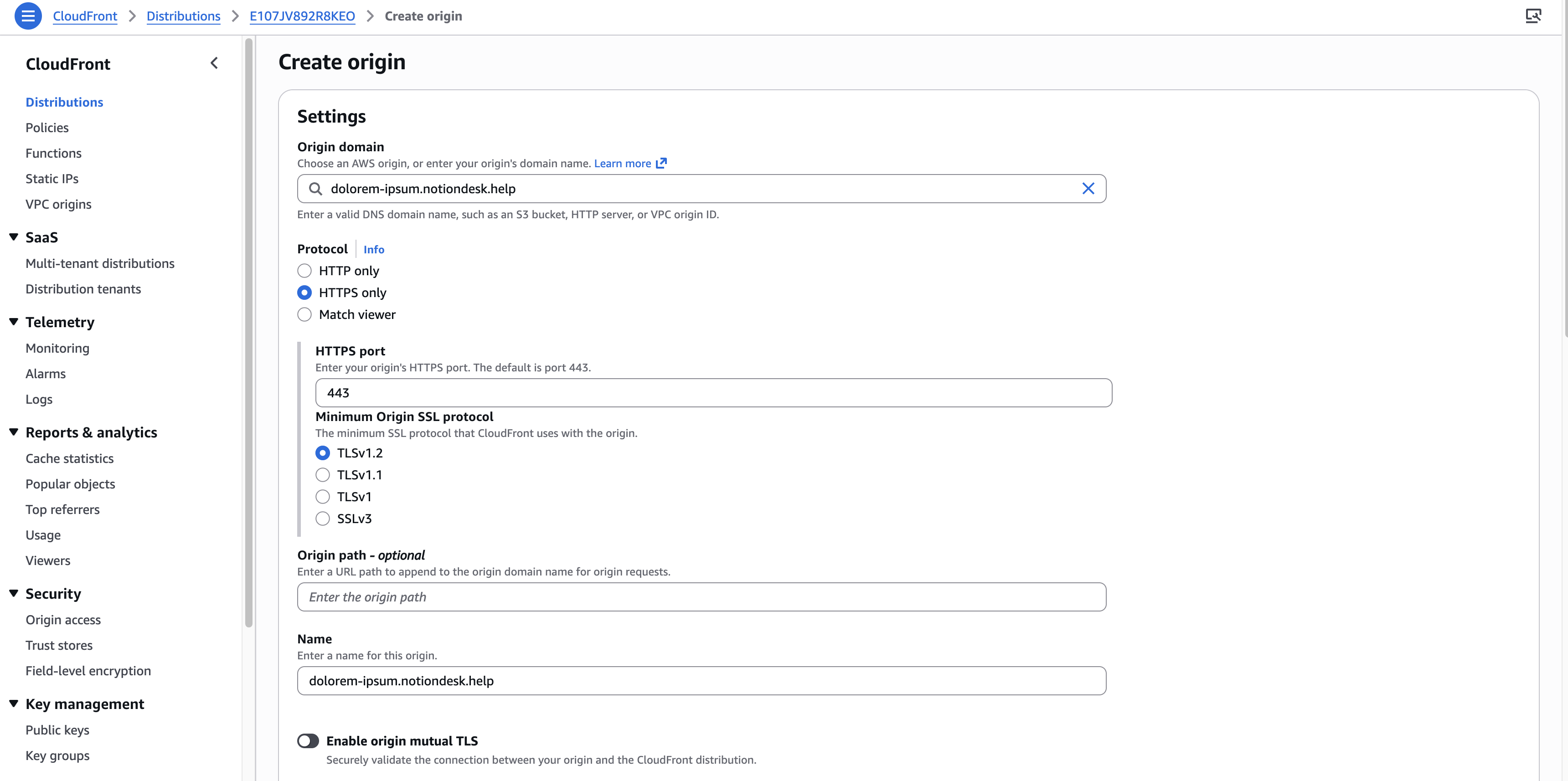
- In
Origin domain, enter the Notiondesk origin domain generated in your dashboard
- Set
ProtocoltoHTTPS only
- Add the custom headers generated by Notiondesk
- Save the origin
Add CloudFront behaviors
Next, add CloudFront behaviors for your help center paths.
A behavior tells CloudFront which URL paths should be sent to which origin. In this case, requests to your help center subpath should be sent to the Notiondesk origin.
For a help center hosted at /help, create these behaviors:
/help
/help/*
/_nd/*
All three behaviors should use the Notiondesk origin you created earlier.
Use the CachingDisabled cache policy while setting up and testing your configuration. This makes it easier to verify changes without old cached responses getting in the way.
For example, if your help center should be available at /docs, create behaviors for /docs, /docs/*, and /_nd/*.
Wait for CloudFront deployment
After saving your origin and behaviors, wait for CloudFront to deploy your changes.
CloudFront updates are not instant. The distribution status must finish deploying before your help center is available on the subpath.
Once the deployment is complete, you can start testing your help center URL.
Verify your setup
Once CloudFront has finished deploying, test your help center from your browser.
Check that:
- The help center loads under your main domain
- Article pages open correctly
- Images, scripts, and styles load correctly
- The browser URL stays on your custom domain
- Your main website still works outside the help center subpath
CloudFront deployments and cache changes can sometimes take time to appear.