Want a screenshot to appear smaller on the side, or a diagram to stretch across the full width? You can control exactly how images display in your articles, size, alignment, and even visual polish like shadows.
Add a directive to your image caption
Open the image in Notion and write a directive directly in the caption field. Any text you add before or after it becomes the visible caption, the directive itself is hidden from your readers.
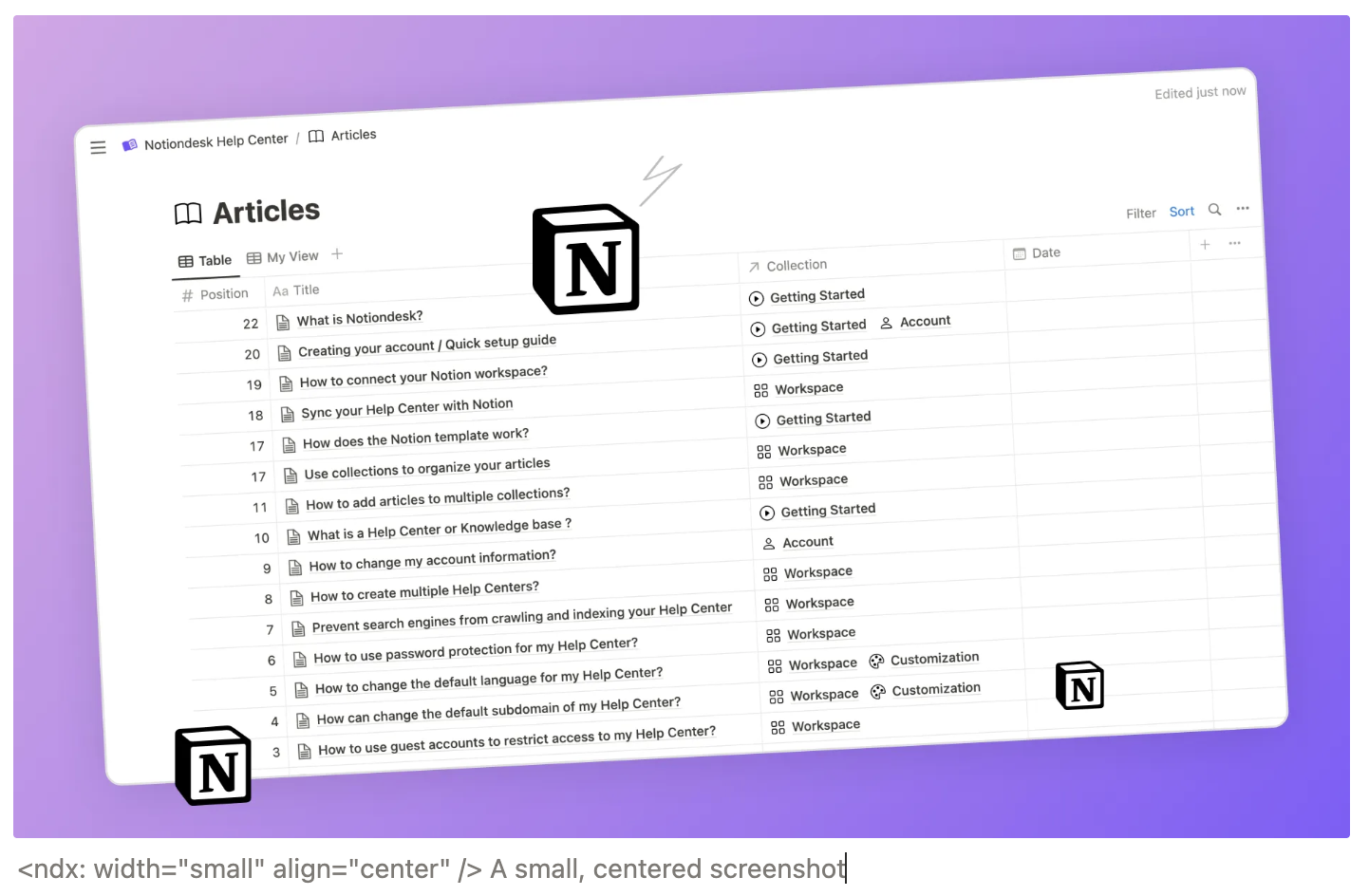
<ndx: width="small" align="center" /> A small, centered screenshot
Set the width
The easiest way to control width is with a preset: small, medium, large, or full.
| Value | Example |
|---|---|
small | <ndx: width=small /> |
medium | <ndx: width=medium /> |
large | <ndx: width=large /> |
full | <ndx: width=full /> |
Set the alignment
Once you've set a width, you'll probably want to position the image too. Use align to place it left, center, or right within the article column.
| Value | Example |
|---|---|
left | <ndx: align=left /> |
center | <ndx: align=center /> |
right | <ndx: align=right /> |

Add a finishing touch with visual effects
Two optional flags help your images look a little more refined. shadow adds a soft drop shadow around the image, and rounded gives it rounded corners. Both are subtle but make a real difference, especially for screenshots.
| Flag | Effect |
|---|---|
shadow | Soft drop shadow around the image |
rounded | Rounded corners |
Just write the flag name to enable it:
<ndx: shadow rounded />
Or be explicit if you want to turn one off:
<ndx: shadow=true rounded=false />
Here's what shadow and rounded corners look like together:

Image caption: <ndx: width=medium align=center shadow rounded />
Combine everything in one directive
You don't need separate directives for each option, put them all together in one. Order doesn't matter.
<ndx: width=medium align=center shadow rounded />