The translation glossary gives you precise control over how Automatic AI Translation handles specific terms across your help center. You can protect brand names, product names, and technical terms from translation, or force specific translations for important terminology.
This ensures Automatic AI Translation produces consistent, accurate translations for terms that matter most to your brand.
What is a translation glossary?
A glossary is a list of terms with special rules that control how Automatic AI Translation handles them:
- Protected terms are never translated (like your brand name)
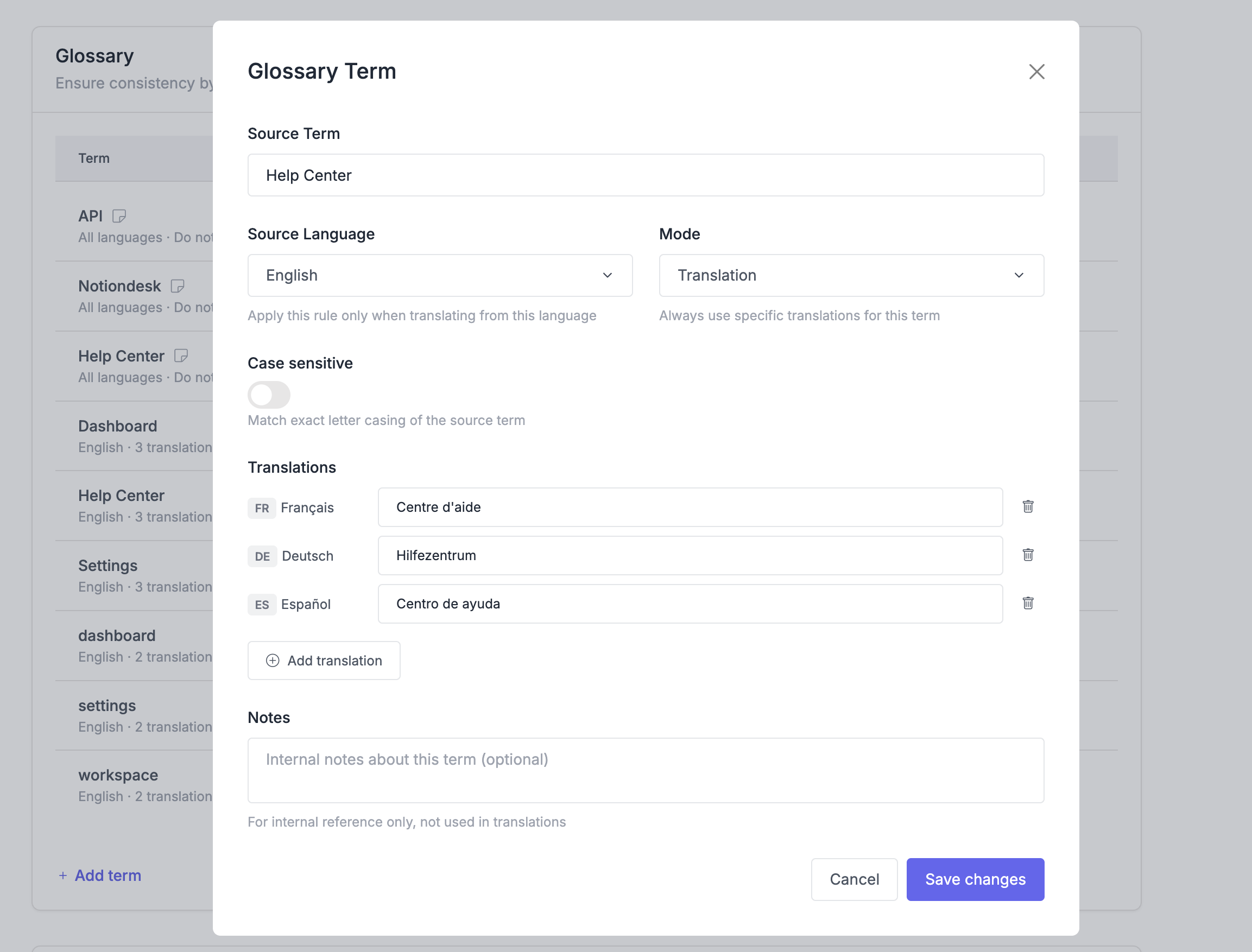
- Forced translations always use your specified translation (like translating "Help Center" as "Centre d'aide" in French)
The glossary applies to all Automatic AI Translations, ensuring consistency across your entire help center.
Add a glossary entry
- Go to Settings → Translation
- Find the Glossary card
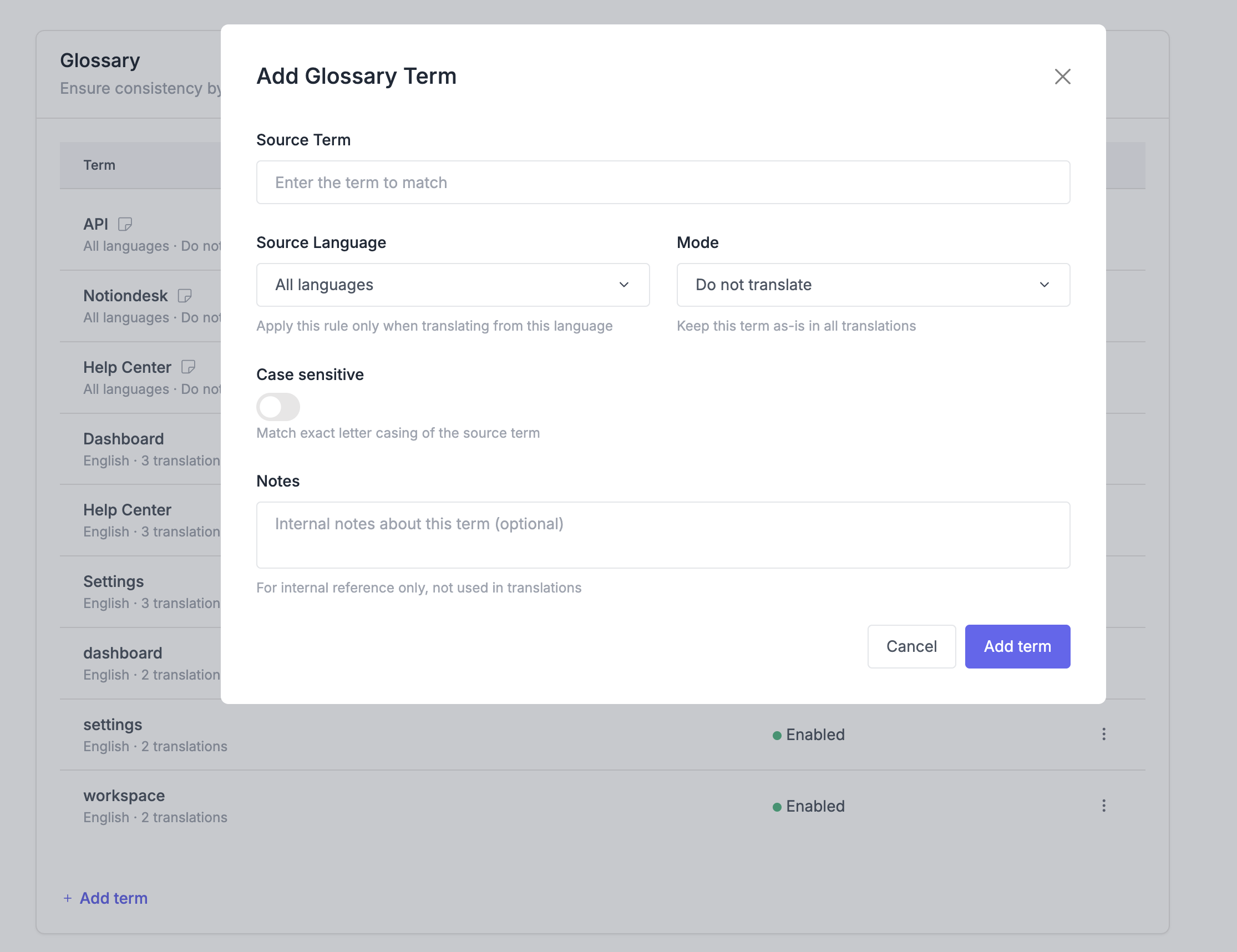
- Click Add term
- Enter the term you want to control
- Choose the Mode (Do not translate or Translation)
- If using Translation, add translations for each language
- Click Add term
Protected terms
Protected terms are never translated. They always appear in their original form, regardless of language.
Best for:
- Brand names (Slack, Stripe, Apple)
- Product names (iPhone, WordPress, Salesforce)
- Proper nouns (company names, people names)
- Technical terms that should stay in English (API, SDK, webhook)
Forced translations
Forced translations ensure Automatic AI Translation always uses your specified translation for a term. You define exactly how a term should be translated in each language.
Best for:
- Technical terms with preferred translations
- Industry-specific terminology
- Terms where default translation isn't accurate
- Product features with specific naming
Add forced translations
- When creating a glossary entry, select Translation as the mode
- Click Add translation for each language
- Select the target language
- Enter the exact translation to use
- Click Save changes
You can add forced translations for as many languages as needed. Languages without forced translations will use the default Automatic AI translation.
Edit or remove glossary entries
Edit an entry
- Go to Settings → Translation
- Find the term in the Glossary list
- Click Edit next to the term
- Update the term, type, or translations
- Click Save changes
Remove an entry
- Find the term in the Glossary list
- Click Delete next to the term
- Confirm removal
Changes apply to new Automatic AI Translations only. Existing translations are not automatically updated when you modify or remove glossary entries.
How glossary entries are applied
Glossary entries work across your entire help center:
- Articles: Body content, titles, descriptions
- Collections: Names and descriptions
The glossary can be case-insensitive. If you add "Dashboard" to the glossary, it will also match "dashboard" or "DASHBOARD" in your content.
Best practices
Start with brand essentials Add your company name, product names, and key brand terms first. These are the most important to protect from Automatic AI Translation mistakes.
Use protected for proper nouns Brand names, product names, and technical terms that should stay in English work best as protected entries.
Use forced for specific translations When the default Automatic AI Translation doesn't match your preferred terminology, use forced translations to ensure consistency. For example, force "Knowledge Base" to always translate as your preferred term in each language.
Keep it focused Don't add every word to your glossary. Focus on terms that genuinely need special handling. Too many entries can make Automatic AI Translation output feel rigid.
Test your glossary After adding entries, translate a sample article and verify the glossary controls Automatic AI Translation as expected. Make adjustments if needed.
Review periodically As you add new products or features, update your glossary. Remove entries for deprecated terms to keep the list current and Automatic AI Translation accurate.