You can set a monthly resolution cap and configure email alerts to control your AI Chatbot costs. Limits pause the chatbot when reached. Alerts notify you as usage grows. You can use them independently or together.
Track your current usage
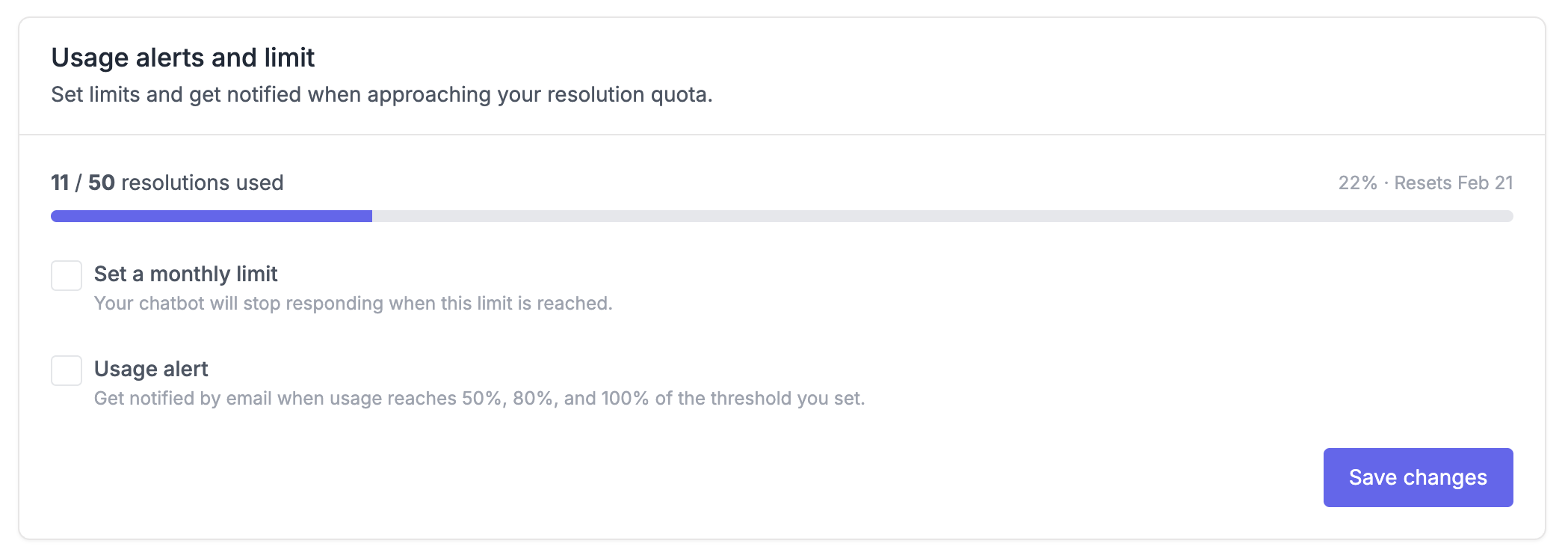
Go to AI Chatbot → Settings, you'll see a usage card showing how many resolutions you've used in the current billing period, a progress bar, and the date your usage resets.
Set a monthly resolution limit
A resolution limit is a hard cap on how many resolutions the chatbot can use each billing period.
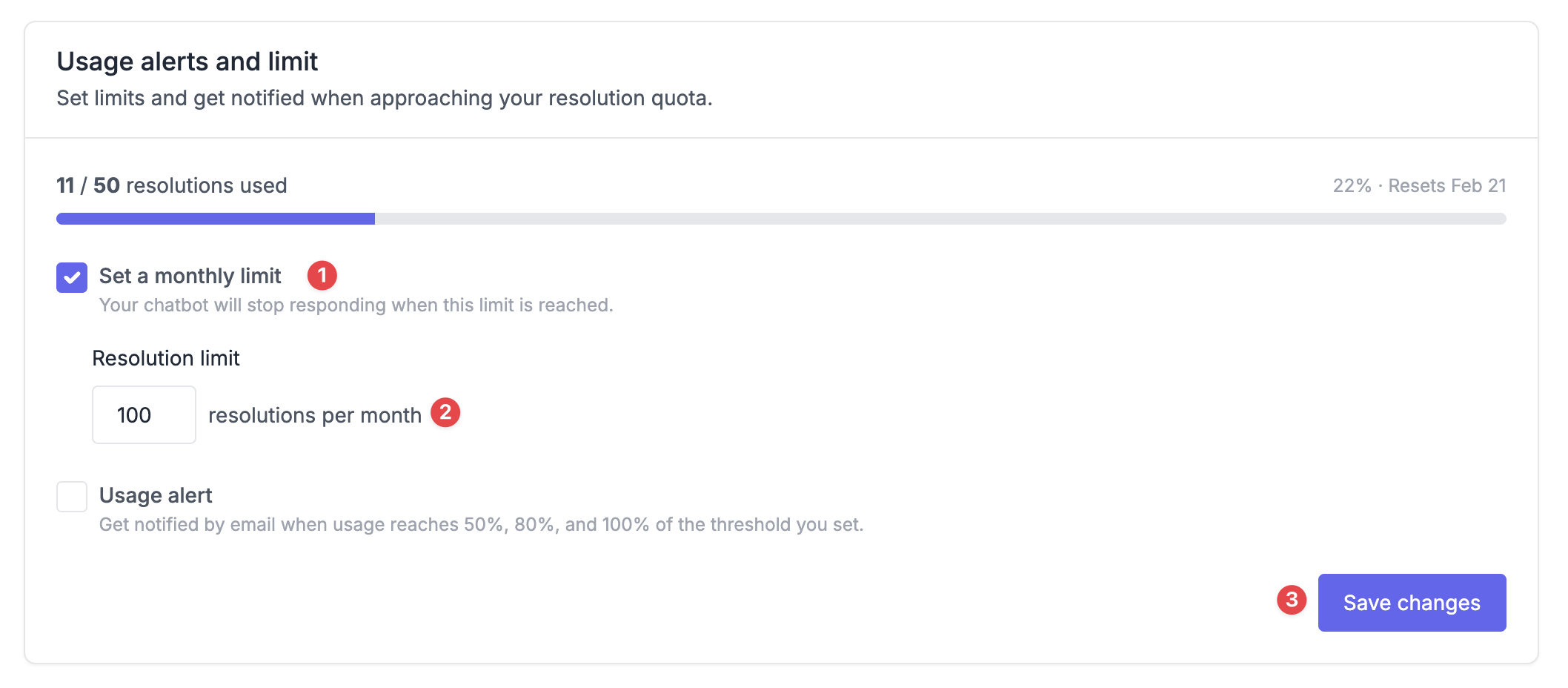
To enable a limit:
- Go to AI Chatbot → Settings.
- Toggle Set a monthly limit on.
- Enter the maximum number of resolutions allowed per month.
- Click Save changes.
When the limit is reached, the chatbot displays a message to visitors letting them know the AI assistant is temporarily unavailable and suggesting they search the help center or contact support directly.
Usage resets automatically at the start of each billing cycle, and the chatbot resumes answering on its own, no manual action needed.
Configure usage alerts
Usage alerts send email notifications when your resolutions hit certain milestones. Unlike limits, alerts don't pause the chatbot, they just keep you informed so you can decide what to do.
To enable alerts:
- Go to AI Chatbot → Settings.
- Toggle Usage alert on.
- Enter an alert threshold, the resolution count you want to monitor against.
- Click Save changes.
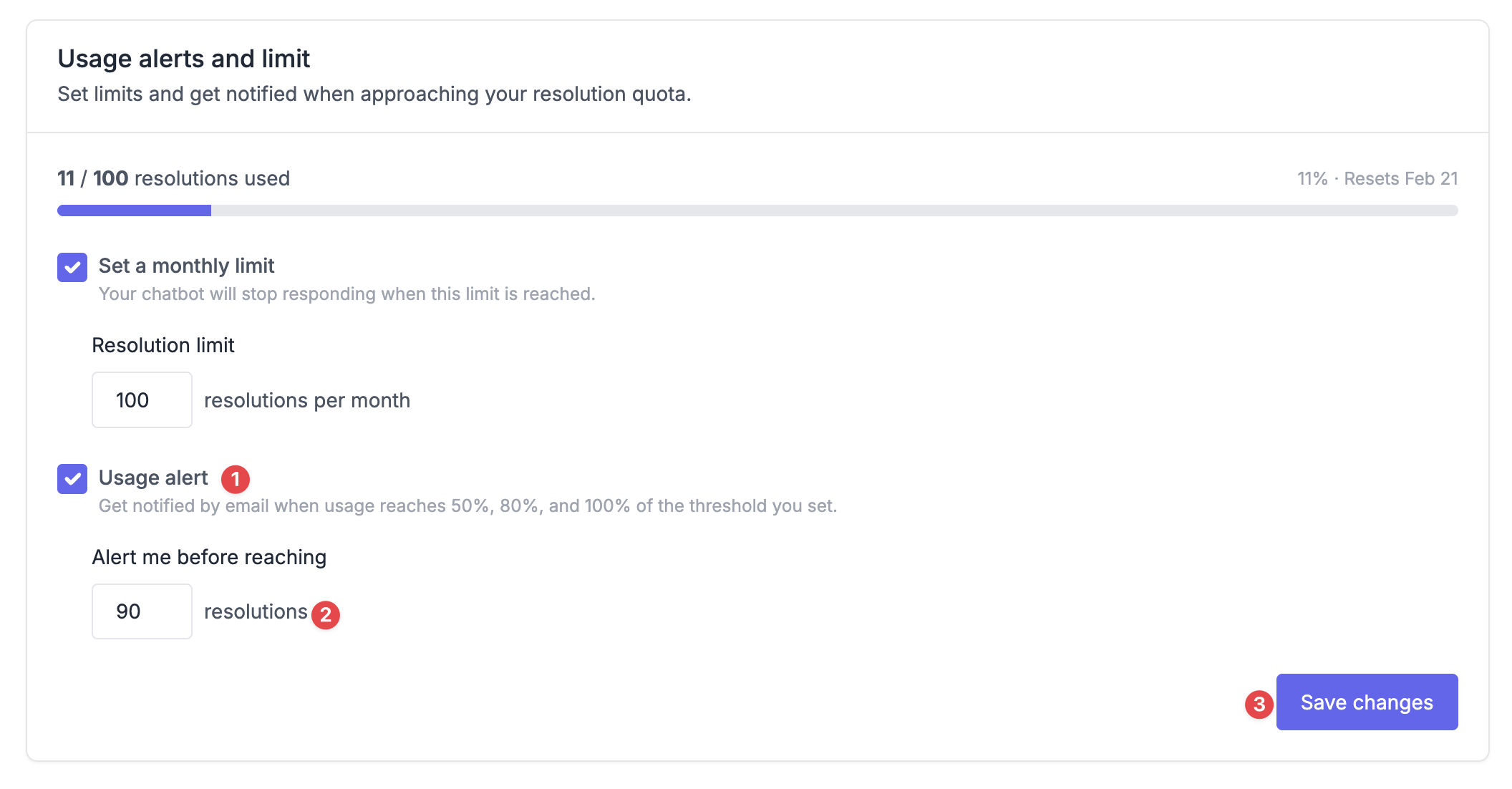
Once enabled, you'll receive email notifications at three milestones: when you reach 50%, 80%, and 100% of your threshold. For example, if your threshold is 200, you'll get emails at 100, 160, and 200 resolutions.
Alerts are sent to the workspace owner's email address and include your current usage count, threshold, and remaining resolutions.
Alerts reset automatically when your billing period renews. If you change the threshold mid-period, tracking resets and milestones are recalculated from your current usage.