Subpath hosting lets you publish your help center on your main website domain, using a path like yourdomain.com/help, yourdomain.com/docs, or yourdomain.com/support.
Instead of sending visitors to a separate subdomain like help.yourdomain.com, your help center stays inside your existing website structure. This is useful if you want your documentation, support articles, or FAQ content to live under your main domain for SEO, branding, and a smoother customer experience.
With Notiondesk, you can enable subpath hosting from your dashboard, then connect it to your website using a proxy, CDN or server configuration.
What is subpath hosting?
Subpath hosting lets you serve your help center from a path on your existing website domain.
For example:
yourdomain.com/help
This means your main website keeps handling the rest of your pages, while Notiondesk handles only the help center path.
Subpath vs subdomain
There are two common ways to host a help center:
| Type | Example | How it works |
|---|---|---|
| Subdomain | help.yourdomain.com | Your help center is hosted on a separate subdomain |
| Subpath | yourdomain.com/help | Your help center is hosted inside your main website domain |
Before you start
Before enabling subpath hosting, make sure you have everything needed to connect your website.
Requirements
You need:
- An existing Notiondesk help center
- Access to your main website configuration
- Access to your hosting, proxy, CDN or server settings
- A subpath you want to use for your help center, for example:
/help,/docsor/support
Enable subpath hosting in Notiondesk
You can enable subpath hosting from your Notiondesk dashboard.
1. Open your help center settings
From your Notiondesk dashboard, go to: Settings > General Then scroll to the Domains section.
2. Enable the Subpath option
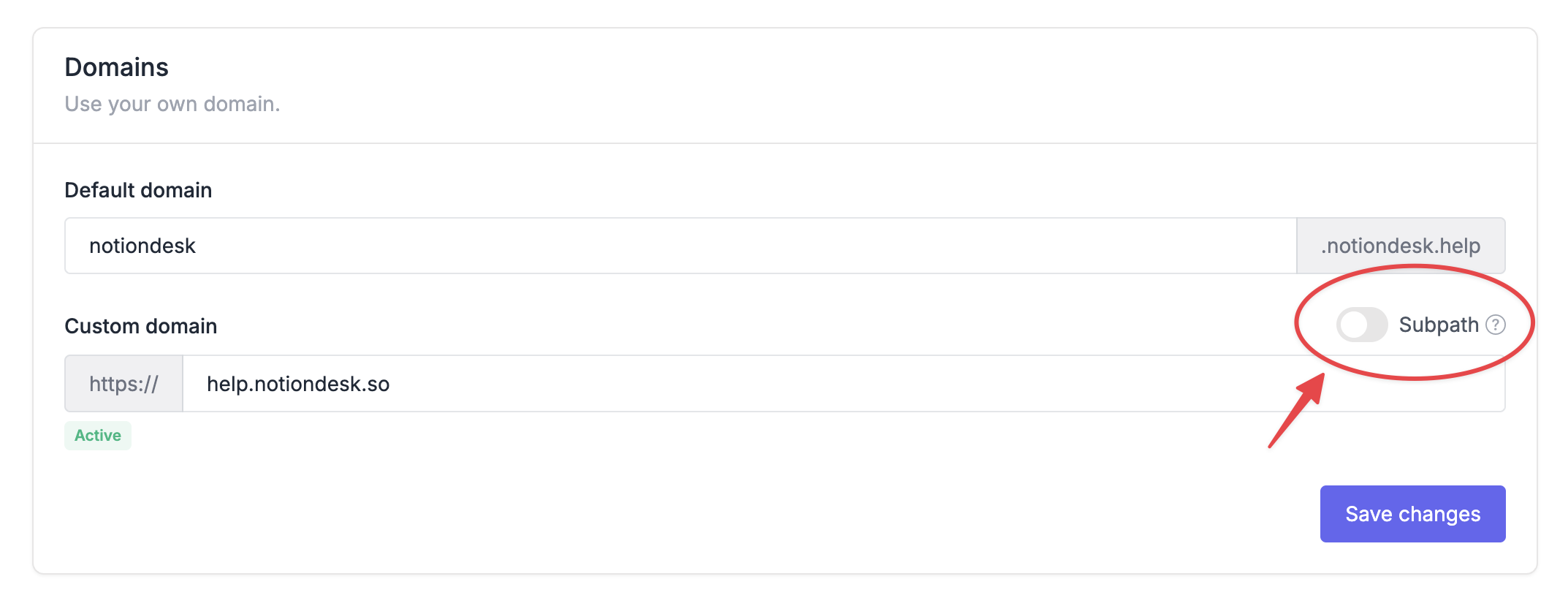
In the Domains section, enable the Subpath switch.
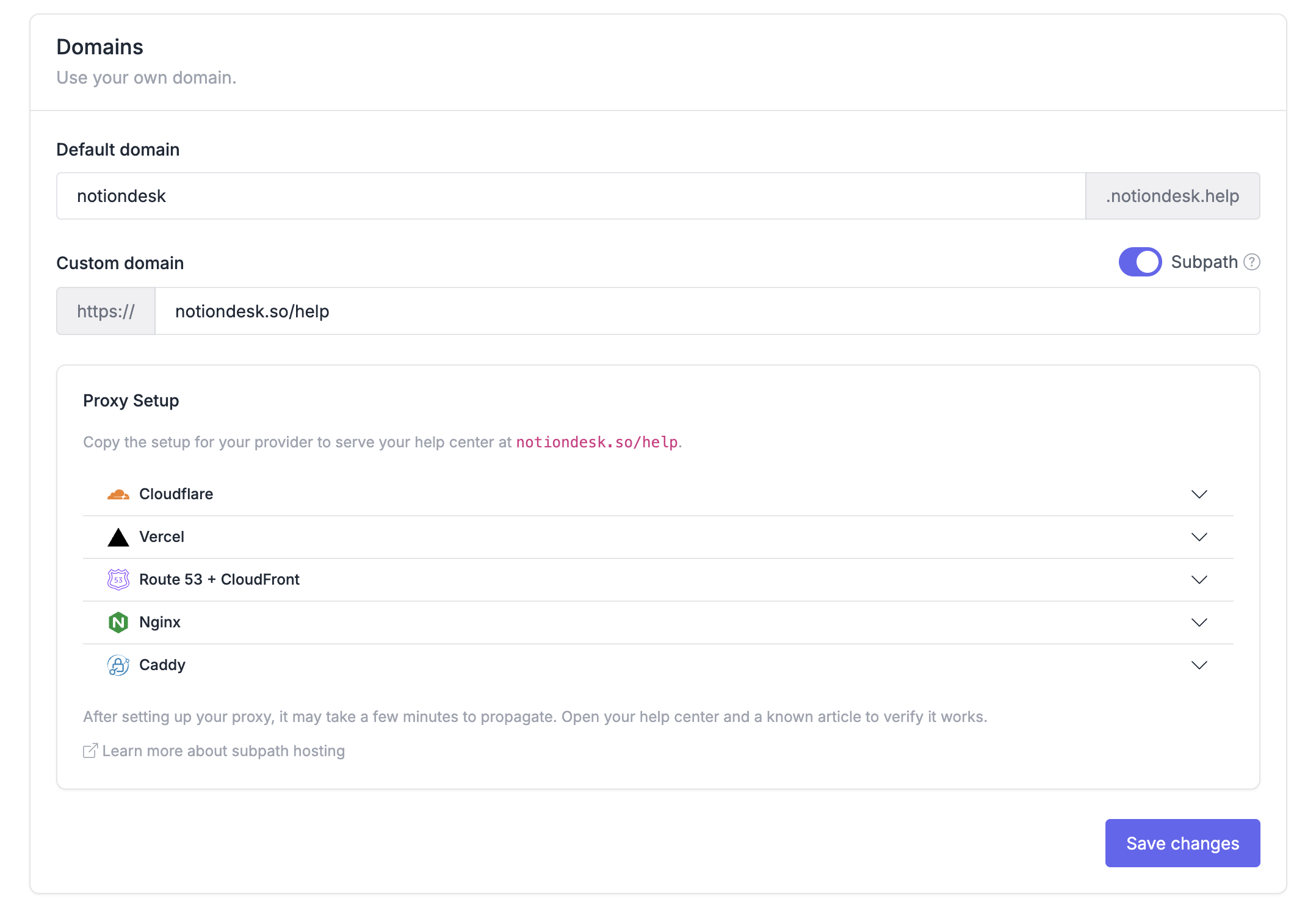
Once enabled, you will see the setup instructions for your help center.
3. Choose your provider
Select or copy the instructions for the provider you use to host your main website.
Notiondesk provides setup instructions for:
- Cloudflare
- Vercel / Next.js
- AWS CloudFront
- Nginx
- Caddy
Use the generated instructions to configure your website proxy, CDN, or server.

Supported setup guides
The setup depends on the provider you use for your website.
Use the dedicated guide for your provider: