You can host your Notiondesk help center on a subpath of your main domain using Cloudflare Workers.
For example, instead of using a subdomain like help.yourdomain.com, you can serve your help center from:
yourdomain.com/help
yourdomain.com/docs
yourdomain.com/support
This setup is useful when your main website already uses Cloudflare and you want your documentation or support content to stay under the same domain.
Before you start
Before setting up subpath hosting with Cloudflare, make sure you have:
- An existing Notiondesk help center
- Access to your Cloudflare dashboard
- A domain managed through Cloudflare
- A subpath you want to use for your help center, such as:
/help
/docs
/support
- Subpath hosting enabled in Notiondesk

Enable subpath hosting in Notiondesk
First, enable subpath hosting from your Notiondesk dashboard.
- Open your Notiondesk dashboard.
- Go to Settings > General
- Scroll down to the Domains section
- Enable the Subpath switch
- Select Cloudflare as your setup provider
- Copy the Cloudflare Worker code generated by Notiondesk
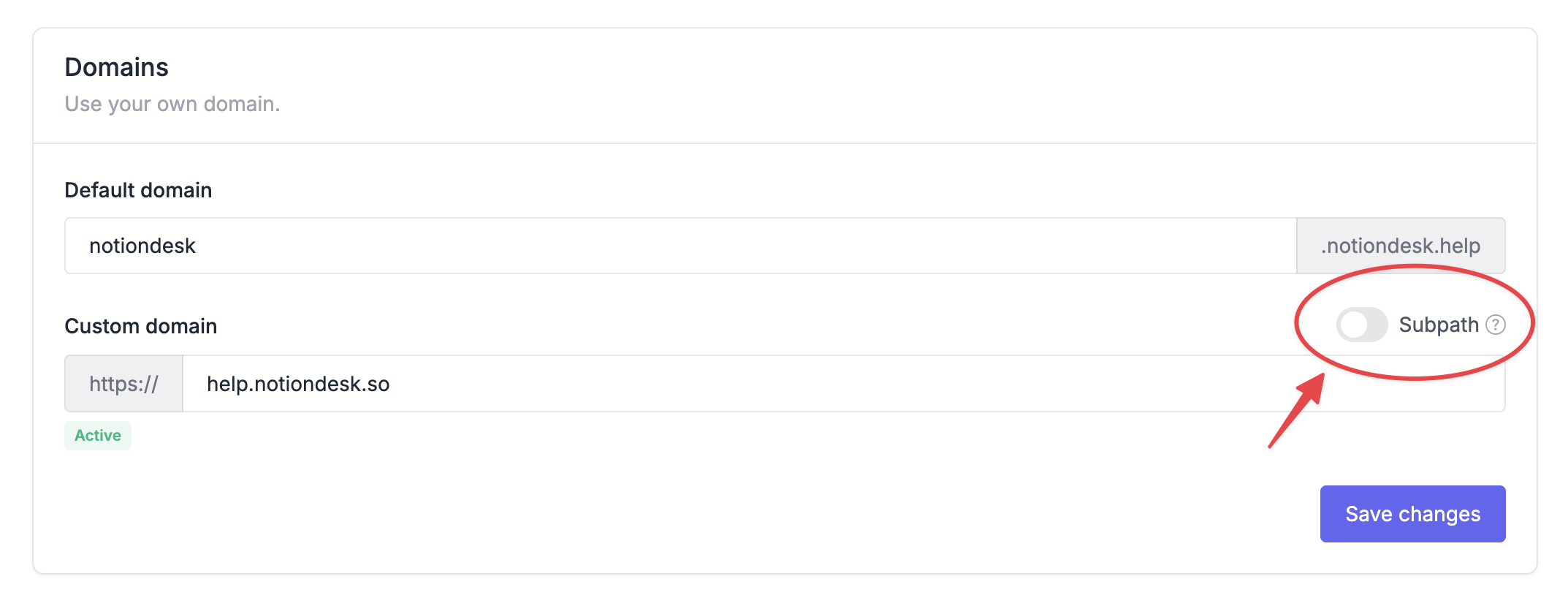
Notiondesk automatically generates the Cloudflare Worker code with the correct values for your help center.
You should copy the code directly from your own dashboard, because it contains values specific to your setup, such as:
- Your Notiondesk origin host
- Your custom domain
- Your selected subpath
Create a Cloudflare Worker
Next, create a Cloudflare Worker that will proxy your help center subpath to Notiondesk.
- Open your Cloudflare dashboard
- Go to Workers & Pages
- Click Create application
- Select Worker
- Create a new Worker
- Open the Worker editor
- Replace the default code with the code generated by Notiondesk
- Click Save and deploy
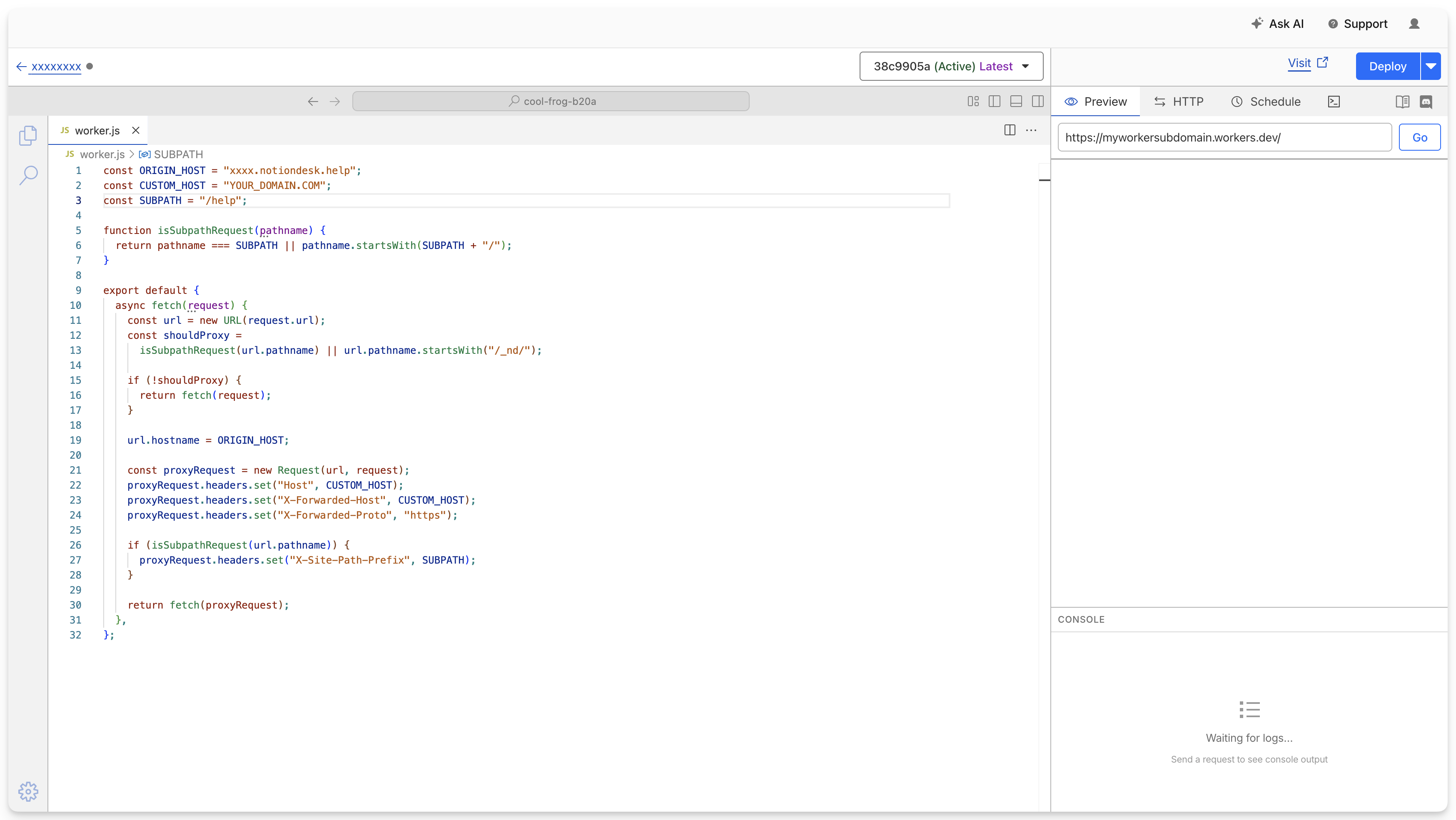
After deploying the Worker, Cloudflare will make it available, but it will not yet run on your help center URL. You need to configure a route so Cloudflare knows when to trigger the Worker.
Configure the Cloudflare route
After deploying the Worker, you need to tell Cloudflare when this Worker should run. The Worker should only run on your selected help center subpath.
For example, if your help center should be available at yourdomain.com/help , add a Worker route like this yourdomain.com/help*
This makes Cloudflare run the Worker for:
- yourdomain.com/help
- yourdomain.com/help/collections/getting-started
- yourdomain.com/help/articles/example-article
- yourdomain.com/help/contact
You also need to make sure the Notiondesk internal route is handled: yourdomain.com/_nd/*
Add the route in Cloudflare
- Open your Worker in the Cloudflare dashboard
- Go to Settings
- Open Domains & Routes
- Click Add route
- Select your zone
- Add your help center route, example:
yourdomain.com/help*
- Add the internal Notiondesk route, example:
yourdomain.com/_nd/*
- Save your changes
/docs, your route should be yourdomain.com/docs*.If you chose /support, your route should be yourdomain.com/support*.
Cloudflare’s official documentation also explains how Worker routes and custom domains for Workers work if you need more details.
Cloudflare Worker example
const ORIGIN_HOST = "your-help-center.notiondesk.help";
const CUSTOM_HOST = "yourdomain.com";
const SUBPATH = "/help";

function isSubpathRequest(pathname) {
  return pathname === SUBPATH || pathname.startsWith(SUBPATH + "/");
}

export default {
  async fetch(request) {
    const url = new URL(request.url);
    const shouldProxy =
      isSubpathRequest(url.pathname) || url.pathname.startsWith("/_nd/");

    if (!shouldProxy) {
      return fetch(request);
    }

    url.hostname = ORIGIN_HOST;

    const proxyRequest = new Request(url, request);
    proxyRequest.headers.set("Host", CUSTOM_HOST);
    proxyRequest.headers.set("X-Forwarded-Host", CUSTOM_HOST);
    proxyRequest.headers.set("X-Forwarded-Proto", "https");

    if (isSubpathRequest(url.pathname)) {
      proxyRequest.headers.set("X-Site-Path-Prefix", SUBPATH);
    }

    return fetch(proxyRequest);
  },
};
Verify your setup
After the Worker is deployed and the routes are configured, open your help center from the subpath you selected. Check that the main help center page loads correctly.
What to check
Make sure that:
- The help center loads under your main domain
- Article pages open correctly
- Images, scripts, and styles load correctly
- The browser URL stays on your custom domain